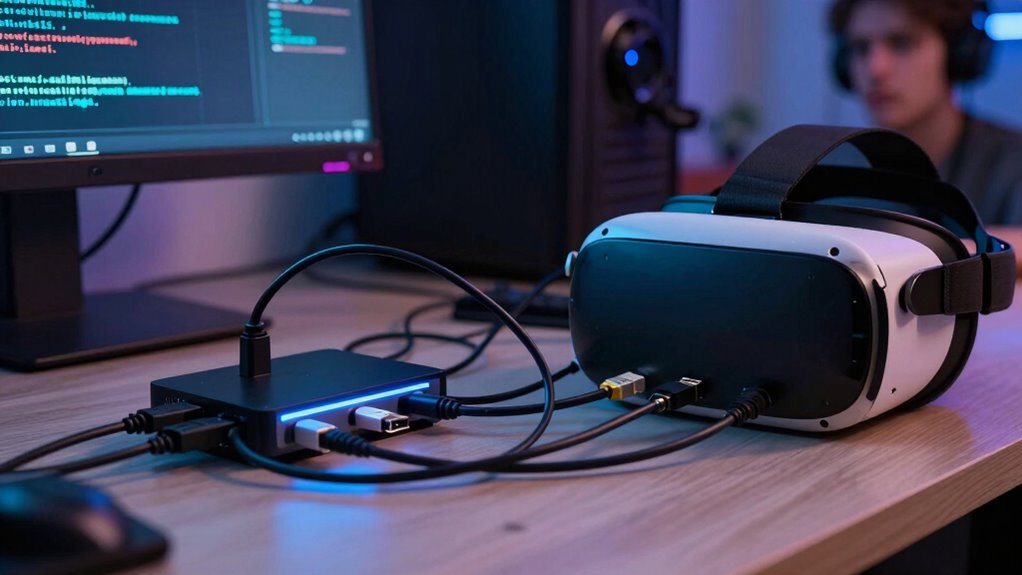

If your VR setup experiences lag, disconnections, or performance issues, USB bandwidth limitations are likely the culprit. Overloaded or shared USB ports can’t handle high-data devices like sensors and controllers, causing latency and jitter. Wireless connections may add interference and delay, while power management settings can limit performance. Properly managing your USB setup with powered hubs, avoiding front panel ports, and updating drivers helps. Stay tuned to learn more about optimizing your VR experience.
Key Takeaways
- Overloading USB ports with multiple high-data devices causes latency, disconnections, and degraded VR performance.
- Shared USB bandwidth among devices can lead to bottlenecks, affecting VR sensor and controller responsiveness.
- Wireless VR accessories may introduce additional latency and bandwidth strain, causing stuttering or lag.
- Using unpowered hubs or front panel ports can limit power and bandwidth, disrupting VR hardware operation.
- Proper setup, including direct motherboard connections and updated drivers, is essential to prevent USB bandwidth issues.
Setting up a VR system can be exciting, but USB bandwidth issues often cause frustrating problems like lag, disconnections, or degraded performance. When your VR headset or controllers aren’t functioning smoothly, it’s usually because your computer’s USB ports are overwhelmed or mismanaged. USB bandwidth is shared among all connected devices, so if you plug in too many peripherals—especially high-data devices like VR sensors, controllers, and external drives—you risk overloading the system. This can lead to latency, jitter, or even intermittent disconnections, ruining the immersive experience you’re trying to achieve. Additionally, the type of USB connection (USB 2.0 vs. USB 3.0 or higher) can significantly impact data transfer speeds and overall performance.
USB bandwidth overloads can cause lag, disconnections, and reduced VR performance.
Wireless connectivity plays a role here too, especially if you’re using wireless VR headsets or accessories. While wireless setups can reduce the clutter of cables and improve movement freedom, they also rely heavily on your Wi-Fi or dedicated RF links. Sometimes, wireless devices can interfere with USB signals or cause additional latency, compounding the bandwidth issues. If your wireless connections aren’t stable or have bandwidth limitations, you might notice stuttering or lag in your VR environment. Balancing wired and wireless components is key; ensuring that wireless devices don’t compete for bandwidth with your wired USB peripherals helps maintain smooth performance.
Power management is another critical factor in resolving USB bandwidth problems. Many computers have power-saving features that can limit the power supplied to USB ports or disable some devices to conserve energy. These settings might inadvertently cause your VR hardware to disconnect or underperform. You should check your system’s power management options and disable any power-saving features for USB hubs or ports used by your VR setup. This guarantees that your devices get consistent power and bandwidth, reducing the risk of lag or disconnections. Ensuring that your system’s power settings are optimized can make a noticeable difference in performance.
To optimize your VR experience, consider using a powered USB hub with high data transfer rates. Connecting your VR sensors and controllers through a dedicated hub can help segment bandwidth and prevent overload. Also, prioritize direct connections to your motherboard’s USB ports rather than through front panel ports or cheap hubs, which may introduce additional latency or bandwidth limitations. Regularly updating your motherboard’s drivers and firmware can also improve device compatibility and bandwidth management. Additionally, understanding your USB bandwidth limitations can help you better plan your setup and avoid overloading your system. Being aware of your system’s peripheral management capabilities ensures that your VR setup remains smooth and responsive.
In the end, managing your USB bandwidth involves balancing your wired and wireless connections, adjusting power settings, and ensuring your hardware is up to date. Properly configuring your system’s hardware resources can prevent conflicts and improve overall performance. By paying close attention to these factors, you can minimize lag, prevent disconnections, and enjoy a seamless, immersive VR experience.
As an affiliate, we earn on qualifying purchases.
Frequently Asked Questions
Can USB Bandwidth Issues Cause VR Hardware Damage?
USB bandwidth issues can’t directly damage your VR hardware, but they can cause compatibility problems and performance drops. If your VR headset isn’t getting enough bandwidth due to poor USB port positioning or overloaded ports, you might experience lag or disconnects, which could lead to hardware malfunction over time. Ensuring proper USB port placement and sufficient bandwidth helps maintain VR headset compatibility and peak performance, preventing potential damage caused by stress or overheating.
Are There Specific USB Versions Better for VR Setups?
Did you know that USB 3.2 offers up to 20 Gbps bandwidth? For your VR setup, USB 3.0 or higher is better because they provide improved USB compatibility and bandwidth optimization, reducing lag and disconnections. Using newer versions guarantees your VR hardware runs smoothly, with enough data transfer speed to handle demanding peripherals. Stick with USB 3.0 or later to enhance your experience and prevent potential issues caused by bandwidth limitations.
How Do I Identify if My USB Port Is Causing Bandwidth Problems?
You can identify if your USB port causes bandwidth issues by checking device performance and connection stability. Use a powered USB hub to guarantee consistent power and avoid sharing bandwidth among multiple devices. Also, disable power management in your system settings, as it can limit port performance. If problems persist, try connecting your VR headset directly to a high-speed USB 3.0 or newer port to improve bandwidth and reduce lag.
Can Software Updates Resolve USB Bandwidth Conflicts in VR?
While software updates can’t directly fix hardware bandwidth issues, they can improve your VR experience by enhancing software compatibility and ensuring your drivers are current. Updating drivers often resolves conflicts that cause bandwidth hiccups, making your USB ports work more smoothly with your VR setup. Keep your system’s software fresh, and you might find your VR experience becomes more seamless, even if the underlying bandwidth constraints remain.
Is It Possible to Upgrade My USB Ports for Better VR Performance?
Yes, you can upgrade your USB ports to improve VR performance. Opt for USB 3.0 or higher ports, as they offer better bandwidth for VR headset compatibility. Using USB-C or USB 3.1 ports helps reduce lag and connection issues, ensuring smoother gameplay. Make sure your motherboard supports these port types, and consider using a powered hub if you need to connect multiple devices.
Conclusion
So, stay savvy and scrutinize your setup to sidestep the USB bandwidth blunder. By balancing your ports and breaking down bandwidth barriers, you’ll boost your VR experience and banish bothersome bugs. Don’t let bandwidth bottlenecks beat your gaming bliss—be vigilant, verify your connections, and venture confidently into virtual worlds without worry. Keep your setup streamlined and your adventures extraordinary, ensuring every virtual voyage is vibrant, vivacious, and virtually flawless.