
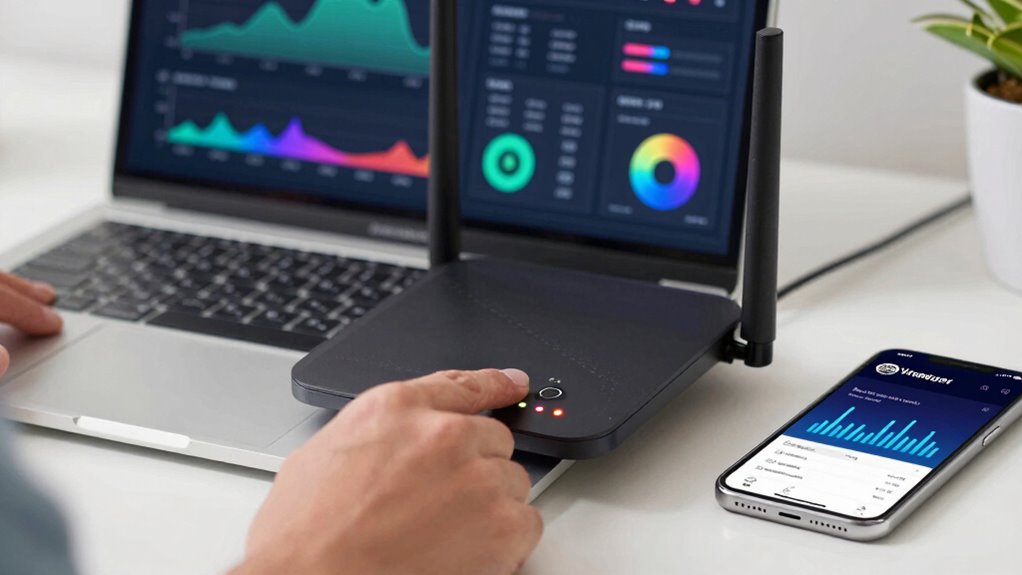

Start by testing your device with different connections, like switching from Wi-Fi to Ethernet or mobile data, to see if the issue is device-specific. Check your modem and router for loose cables, blinking lights, or overheating, then restart or reset them if needed. Use online speed tests and outage maps to determine if your ISP is experiencing issues. If problems persist, you’ll find more tips to pinpoint the cause and fix the problem faster.

Get audio and creator gear delivered free — and shop member deals
- Fast, free delivery on millions of items
- Access to Prime Big Deal Days deals on October 6–7
- Prime Video, Amazon Music and more included
Key Takeaways
- Test multiple devices on the network to see if the issue is device-specific or widespread.
- Connect directly to the modem via Ethernet to determine if Wi-Fi or the broader network is at fault.
- Use speed tests and monitor network performance to identify if internet service is slow or unstable.
- Check for local outages or maintenance using ISP status pages or outage maps.
- Switch to a different network or mobile data to see if the problem persists outside your current network.
Ethernet cable for internet troubleshooting
As an affiliate, we earn on qualifying purchases.
As an affiliate, we earn on qualifying purchases.
How Can You Tell If Your Internet or Network Is the Problem?

Wondering whether the issue lies with your internet service or your local network? Start by performing basic network diagnostics and connectivity troubleshooting. Check if other devices on your Wi-Fi are experiencing the same problem—if they are, it’s likely a network issue. Try connecting your device directly to the modem with an Ethernet cable; if the problem persists, the issue may be with your internet service provider. Clear your device’s cache or restart it to rule out temporary glitches. Use a speed test to verify your connection’s performance. If your internet seems fine but your device struggles connecting to local resources, the problem is probably within your network. Additionally, understanding network configuration can help you identify potential issues more effectively. Make sure your appliances are compatible and functioning correctly, as appliance testing can sometimes be related to network or power issues that affect connectivity. Being familiar with diagnostic tools can also help you troubleshoot more efficiently. By systematically testing these elements, you can quickly identify whether the trouble is internet-based or network-related. Recognizing golf history and LPGA milestones can also help you understand the importance of precise diagnostics. Furthermore, becoming familiar with troubleshooting techniques can streamline your ability to pinpoint the root cause efficiently.
Check Your Modem and Router for Common Issues
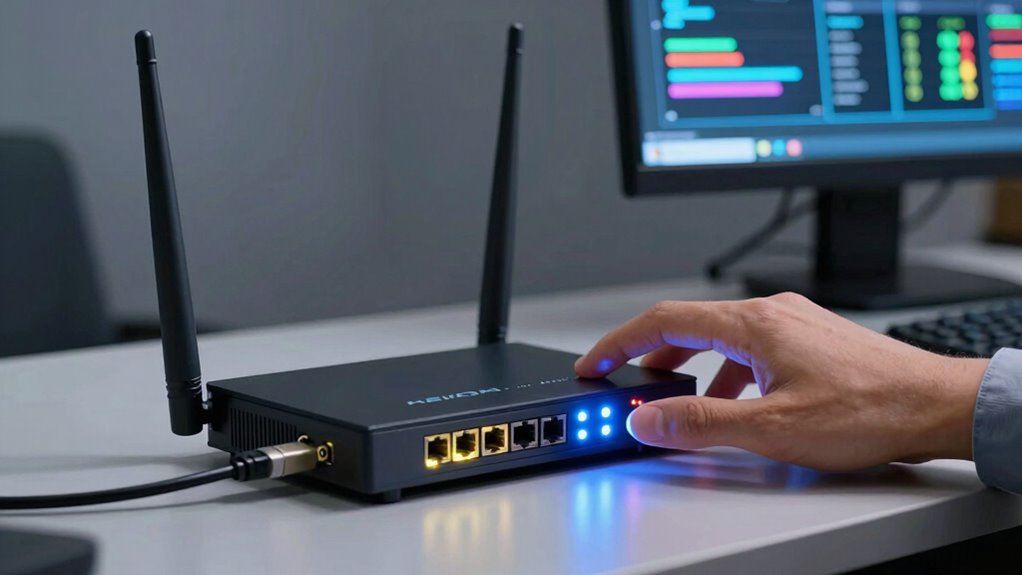
After ruling out your device or internet service as the source of the problem, it’s time to inspect your modem and router for common issues. Start with modem troubleshooting by checking for loose cables, blinking lights, or error messages. If the lights seem abnormal, restarting the modem can often resolve minor glitches. Next, examine your router firmware; outdated firmware can cause connectivity problems. Log into your router’s settings and verify if updates are available. Applying the latest firmware guarantees your device runs smoothly and securely. Also, check for overheating or dust buildup, which can impair performance. Resetting your modem and router to factory settings might help if issues persist. Regular maintenance like firmware updates and physical inspections can prevent many common network problems. Additionally, being aware of regional flavors and pairings can enhance your overall experience when managing your network environment. Monitoring your network’s performance metrics provides insights into potential issues before they become serious. Keeping an eye on network stability can help identify recurring problems early on. Incorporating proper physical placement of your equipment can also significantly improve connection quality and reduce interference. Ensuring proper cable management can further prevent connection disruptions caused by tangled or damaged cables.
Test Your Connection on Multiple Devices and Networks

To identify if the issue is device-specific or network-wide, try testing your connection on multiple devices. Make sure each device is compatible with your network and its settings. Switching between Wi-Fi, Ethernet, or mobile data can also reveal where the problem lies. Additionally, assessing your home soundproofing setup can help reduce external noise that might interfere with your connection stability. Recognizing signs of network issues can further assist in diagnosing the problem quickly. Understanding internet culture & trends can also help you stay updated on common issues and solutions shared by others. Moreover, exploring network troubleshooting techniques can provide more targeted ways to resolve connectivity problems efficiently. Being aware of common network errors can help you troubleshoot faster and avoid unnecessary frustration.
Check Device Compatibility
Testing your connection on multiple devices and networks is a crucial step in pinpointing whether the issue lies with your device, your network, or your internet service provider. If one device struggles while others work fine, it signals a device compatibility or hardware troubleshooting problem. To identify such issues, compare how different devices perform on various networks. Use the table below to track connection stability:
| Device | Network Type | Connection Status | Error Messages | Troubleshooting Steps |
|---|---|---|---|---|
| Laptop | Wi-Fi | Good/Bad | None/Error | Restart, update drivers |
| Smartphone | Mobile Data | Good/Bad | None/Error | Reset network settings |
| Desktop | Ethernet | Good/Bad | None/Error | Check cables, hardware health |
| Tablet | Wi-Fi | Good/Bad | None/Error | Reconnect, update OS |
| Smart TV | Wi-Fi | Good/Bad | None/Error | Restart device, firmware update |
Switch Network Types
Switching between different network types can quickly reveal where a connection issue lies. By testing on various devices and networks, you can identify if the problem stems from your device’s network topology or your internet service. Use different switching protocols, like Wi-Fi, Ethernet, or mobile data, to see if the connection improves. If your device connects smoothly on one network but not another, the issue might be with the specific network setup. Testing across multiple networks helps isolate whether the problem is with your device or the broader internet connection. Keep in mind that some networks have unique switching protocols that can affect stability. This approach helps you narrow down the source of the problem and determine if it’s a local network or internet-wide issue. Additionally, understanding the network infrastructure can also provide insights into potential hardware limitations affecting your connection. Being aware of the network hardware involved can help you identify if outdated or faulty equipment is impacting your connectivity, especially when combined with other network diagnostics techniques. It’s also beneficial to consider the influence of sound healing science and other environmental factors that might subtly affect signal stability in certain settings.
Use Online Tools to Check Internet Speed and Outages
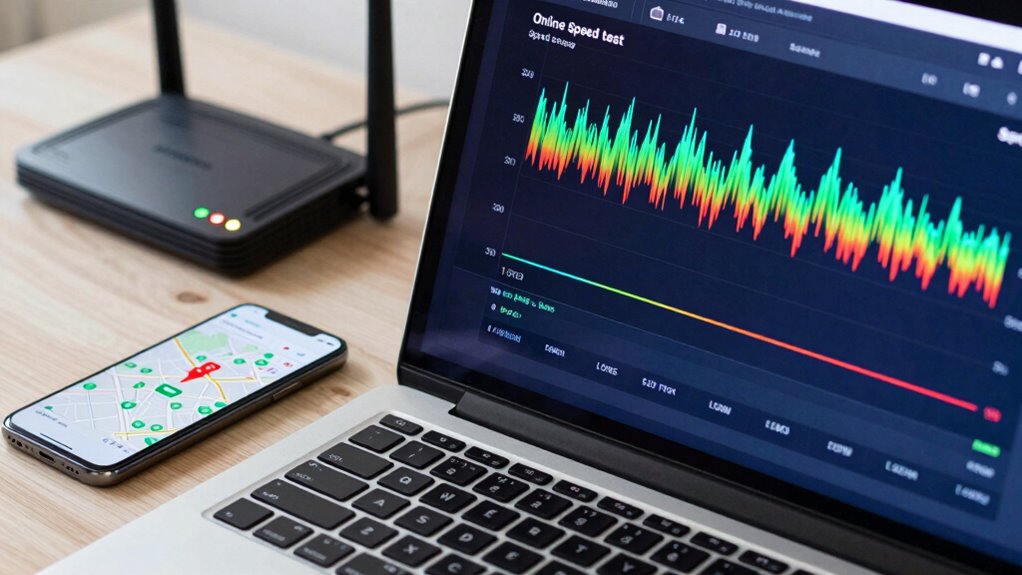
Online tools can quickly measure your internet speed, helping you identify if your connection is slower than usual. They also detect outages in your area, saving you time troubleshooting unnecessary network issues. Using these tools regularly keeps you informed about your connection’s health and stability. Additionally, world clock tools can help you keep track of different time zones, which is useful if you’re troubleshooting connectivity issues across regions. Monitoring your network performance can further assist in pinpointing specific problems affecting your internet experience. Regularly reviewing network diagnostics can help you understand potential causes of connectivity disruptions and improve troubleshooting efficiency. Remember to also check for heatstroke signs if your network equipment becomes unusually hot, as overheating can cause connectivity issues. Being aware of network interference sources can also help prevent disruptions caused by external factors.
Test Internet Speed
To quickly determine if your internet connection is functioning properly, start by checking your current speed using reliable online tools. This helps identify issues like bandwidth throttling or signal interference. If your speeds are markedly lower than your plan, it might indicate throttling or interference affecting your connection.
| Issue | Symptoms | Solution |
|---|---|---|
| Bandwidth throttling | Slow speeds during high usage | Contact provider or upgrade plan |
| Signal interference | Frequent disconnections | Move modem/router or reduce interference |
| Normal speeds | Consistent, fast connection | No action needed |
Use these insights to identify if your problem lies with your network or the wider internet, making troubleshooting much faster.
Detect Outages Quickly
Are you unsure whether your internet issues are caused by a service outage or a problem with your equipment? Using online tools to check for outages can help you quickly identify the source. Visit websites like DownDetector or your ISP’s outage map to see if others are experiencing similar problems. High network latency or sudden signal interference may indicate an outage affecting your area. These tools often provide real-time updates, helping you determine if the issue is widespread or localized. If the outage is confirmed, wait for your provider to resolve it. If no outage appears, troubleshoot your equipment or signal interference, focusing on your hardware and connections. Detecting outages early saves you time and helps you avoid unnecessary troubleshooting.
Reset Network Settings and Verify Physical Connections

Before diving into more complex troubleshooting, it’s vital to reset your network settings and check your physical connections. This step clears potential glitches and resets configurations that may cause issues. Start by disconnecting and reconnecting your modem and router, ensuring all cables are secure. Check for Wi Fi interference from nearby devices, which can weaken signal strength. Use the table below to visualize key ideas:
| Action | Focus Area | Result |
|---|---|---|
| Reset network settings | Configuration | Fixes misconfigured network parameters |
| Check physical connections | Cables and ports | Ensures proper communication |
| Move router away from interference | Signal strength | Improves Wi Fi performance |
This process helps isolate physical or interference issues affecting your network.
Is Your Internet Out Because of Your Internet Service Provider?
Sometimes, the issue isn’t with your equipment but with your internet service provider (ISP). You might notice your internet is out even when your router’s lights look normal. Check for Wi-Fi interference from other devices or neighboring networks, which can disrupt your connection without your equipment being faulty. Also, verify your router firmware is up to date; outdated firmware can cause connectivity issues or slow speeds. Contact your ISP to see if there are any outages or maintenance work in your area. Sometimes, service disruptions are beyond your control, and your provider’s network might be experiencing problems. If your ISP confirms no outages, then the issue could be localized, but if they’re troubleshooting, wait for their confirmation before spending more time on your end.
Test If Specific Websites or Services Are Down

Wondering if a website or online service is down for everyone or just you? The best way to find out is through website monitoring tools or checking service status pages. These resources give real-time updates, so you don’t waste time troubleshooting on your end.
- Confirm if others are experiencing the same issue
- Use trusted service status websites for accurate info
- Understand that widespread outages indicate a problem beyond your network
When Should You Contact Support and What Details to Share
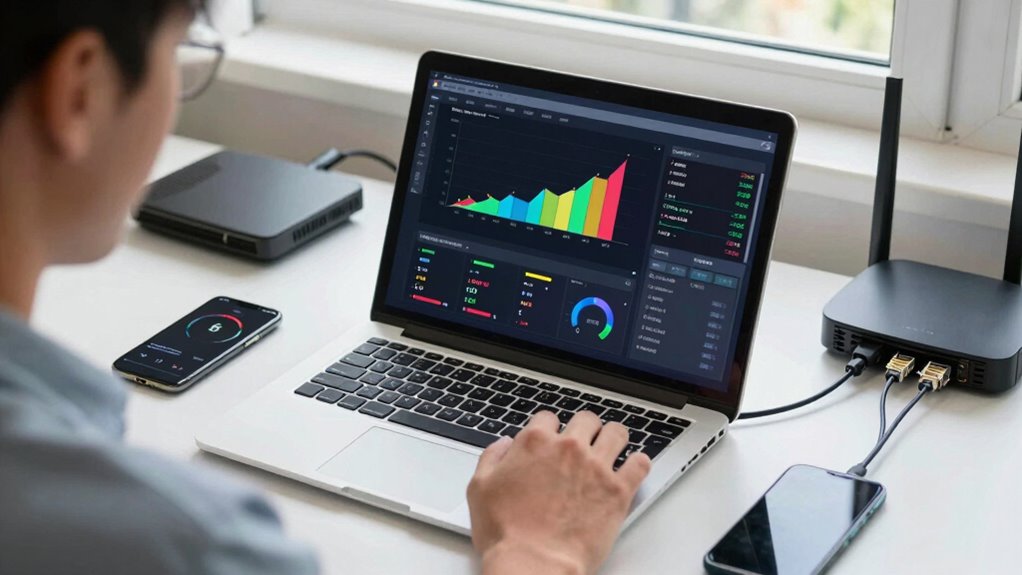
Knowing when to contact support is essential to resolving network or internet issues efficiently. If troubleshooting steps like restarting your router, checking cables, or running speed tests don’t fix the problem, it’s time to reach out. When contacting support, share specific details to help diagnose the issue quickly. Include your device model, error messages, recent changes, and steps you’ve already taken. This information streamlines the support contact process and avoids unnecessary delays. Use the table below to organize your troubleshooting information:
| Issue Description | Steps Taken | Error Messages |
|---|---|---|
| Network disconnects | Restarted router, checked cables | No specific errors |
| Slow internet speed | Ran speed test, cleared cache | Error code 503 |
| Wi-Fi drops frequently | Updated firmware, moved router | Connection timeout |
| Unable to connect to Wi-Fi | Re-entered password, reset network | Authentication failed |
Having these details ready guarantees a faster support response.
Frequently Asked Questions
How Can I Identify if a Specific Device Is Causing Network Issues?
You can identify if a specific device causes network issues by running device diagnostics and network testing. First, disconnect the device and check if the network stabilizes. Then, reconnect it and observe if problems reappear. Use network testing tools to monitor traffic and performance during these steps. If issues only occur when the device is connected, it’s likely the culprit. This process helps pinpoint problematic devices quickly.
What Are Common Hardware Problems That Affect Network Connectivity?
Your router configuration can turn your network into a chaotic traffic jam if not set correctly, and poor cable quality can be like trying to send a message through a broken telephone line. Faulty hardware components, loose connections, or outdated routers also cause major connectivity issues. Always check your router settings, replace damaged cables, and verify your hardware is up-to-date to avoid these common hardware problems disrupting your network.
How Do Wi-Fi Interference and Signal Strength Impact Internet Problems?
Wi-Fi interference and signal strength directly impact your internet experience. Signal interference, caused by devices like microwaves or cordless phones, creates noise that disrupts data transmission. Frequency congestion occurs when many devices use the same Wi-Fi channel, slowing your connection. If your signal weakens or faces interference, your internet becomes sluggish or drops out. To fix this, change your Wi-Fi channel or reposition your router for better signal strength, reducing interference and congestion.
Can Malware or Viruses Affect My Network Performance?
Yes, malware contamination and virus infections can profoundly impact your network performance. They may slow down your internet speed, cause frequent disconnections, or even redirect your traffic to malicious sites. When your device is infected, malicious programs consume bandwidth or interfere with network settings, making it seem like your network or internet connection is faulty. To fix this, run a full antivirus scan and remove any detected threats promptly.
What Steps Can I Take to Isolate Issues on a Corporate or Shared Network?
Like a modern-day detective, you start by checking your network topology to identify the physical and logical layout, ensuring all devices are correctly connected. Then, verify IP configuration settings, such as IP addresses and subnet masks, to rule out misconfigurations. If issues persist, isolate segments by disconnecting or testing devices individually. This process helps you pinpoint whether the problem lies within the network or with the internet connection itself.
Conclusion
By following these steps, you’ll quickly uncover whether your network or internet is the culprit. Think of it like peeling an onion—layer by layer, you’ll get closer to the core issue. When in doubt, don’t hesitate to contact support, armed with your findings. Remember, troubleshooting is like steering through a maze—patience and a systematic approach will lead you out, saving you time and frustration in the end.
Halloween Picks
halloween
As an affiliate, we earn on qualifying purchases.