
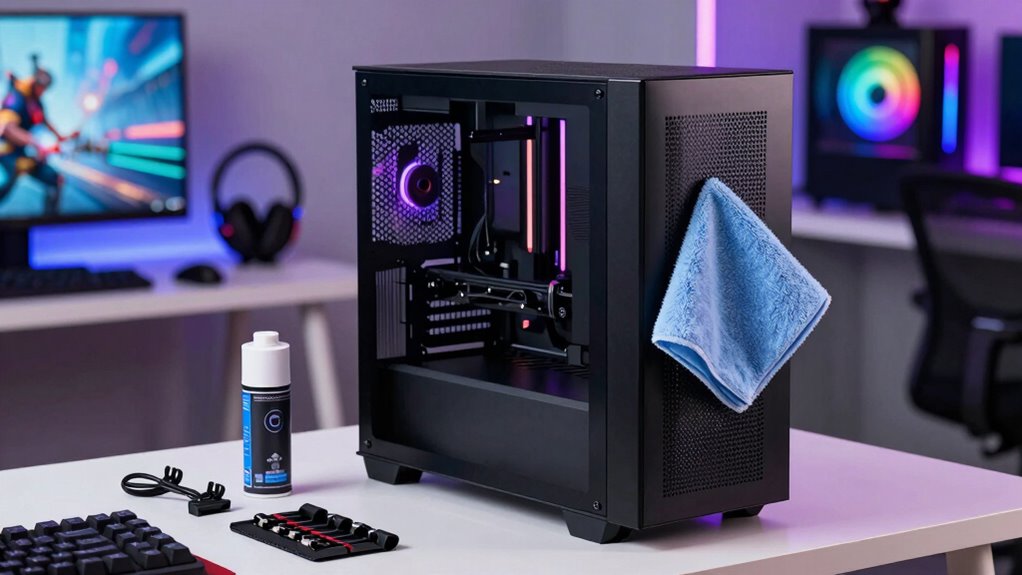

To make your prebuilt gaming PC last longer, regularly clean dust from components and guarantee good airflow by checking ventilation and filters. Keep system temperatures in check with proper cooling and update drivers and BIOS for peak performance. Avoid excessive overclocking and unnecessary power usage to prevent stress on hardware. Pay attention to system alerts and noises, and practice smart usage habits like allowing the PC to cool down. Continue exploring these tips to keep your system running smoothly over time.

Get audio and creator gear delivered free with Prime
- Fast, free delivery on millions of items
- Prime Video, Amazon Music and more included
- Member-only deals all year
Key Takeaways
- Regularly clean dust filters, fans, and heatsinks to prevent overheating and maintain optimal airflow.
- Keep system drivers, BIOS, and software updated for stability and compatibility.
- Monitor temperatures and system logs to detect early signs of hardware issues or overheating.
- Manage power settings and avoid unnecessary overclocking to reduce heat and hardware stress.
- Implement good usage habits, like allowing the system to cool down and preventing unnecessary high loads.
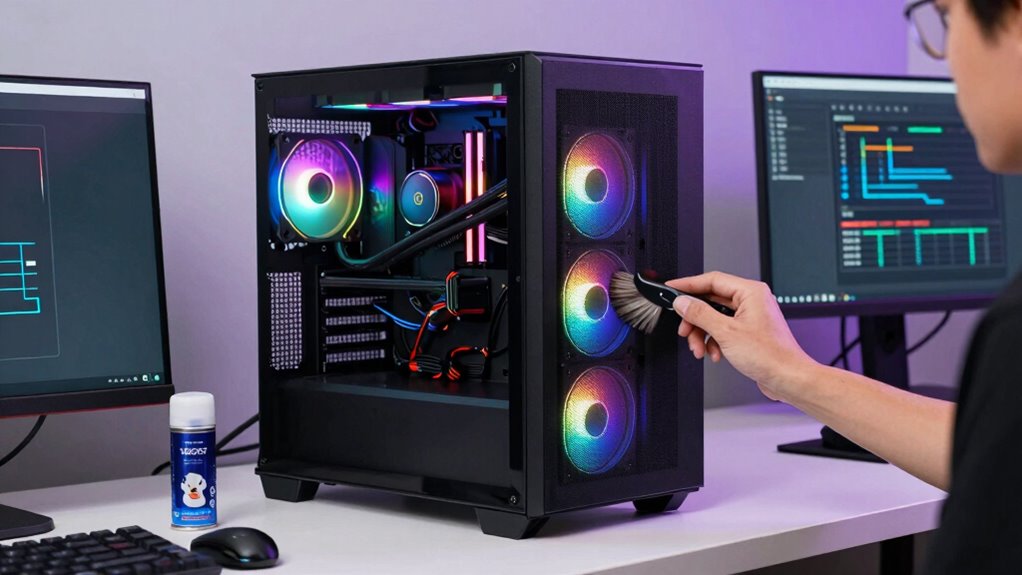
Prebuilt gaming PCs offer convenience and powerful performance, but without proper care, their lifespan can be shorter than expected. To get the most out of your investment, you need to pay attention to how you maintain and operate your system. One of the key areas is keeping your PC cool, especially when engaging in demanding activities like VR gaming. VR requires a lot from your hardware, often pushing components to their limits and generating significant heat. Make sure your case has good airflow, clean dust filters regularly, and consider upgrading your cooling system if you notice temperatures rising. Proper cooling prevents overheating, which can lead to hardware failures and decreased performance over time. Regularly monitoring your system’s temperature levels can help you catch overheating issues early and prevent damage. Additionally, understanding how contrast ratio impacts your display can help you optimize your gaming and viewing experience for better clarity and immersion. Maintaining optimal thermal management is essential for preserving your PC’s longevity, especially during extended gaming sessions. Another vital tip is updating your drivers and system BIOS consistently. Outdated drivers can cause stability issues, crashes, and even reduce the lifespan of your components. Keep your graphics card driver up to date to guarantee smooth VR experiences, which are resource-intensive and demand top performance from your GPU. Also, apply recommended overclocking tips if you’re interested in squeezing extra performance from your system. Overclocking can boost your gaming experience, especially in VR, but it also increases heat output and stress on your components. Always proceed with caution: increase clock speeds gradually, monitor temperatures carefully, and avoid pushing your hardware beyond safe limits. Proper overclocking guarantees you get better performance without risking damage or instability. Regularly cleaning your PC internals is another step toward longevity. Dust buildup can insulate components, raising temperatures and causing thermal throttling or failures. Use compressed air to remove dust from fans, heatsinks, RAM, and other components. Additionally, check your power supply connections and ensure they’re secure; loose connections can cause power fluctuations that damage sensitive parts over time. Reviewing your system logs can also help identify early signs of hardware issues before they become critical. Paying attention to power management settings can also help reduce unnecessary energy consumption and heat generation, prolonging your hardware’s lifespan. Lastly, pay attention to your usage habits. Avoid leaving your PC on unnecessarily, especially during high temperatures, and give it time to cool down. When gaming, especially in VR, limit overclocking to safe levels and follow manufacturer guidelines. Be vigilant about system alerts or abnormal noises, which can signal early issues. Regular maintenance and mindful use not only enhance your gaming experience but also extend the lifespan of your prebuilt gaming PC, allowing you to enjoy high-quality VR gaming and other demanding tasks for years to come.
As an affiliate, we earn on qualifying purchases.
Frequently Asked Questions
Can Overclocking Harm My Prebuilt Gaming Pc’s Longevity?
Overclocking can harm your prebuilt gaming PC’s longevity because of overclocking risks like increased heat and stress on components. Pushing your hardware beyond factory settings may cause damage and void your warranty, leaving you responsible for repairs. If you’re considering overclocking, do it carefully, monitor temperatures, and understand the warranty implications to avoid long-term harm to your system’s performance and lifespan.
How Often Should I Replace Thermal Paste on My GPU?
You should replace your GPU’s thermal paste every 2 to 3 years, but don’t ignore signs of overheating or noise. The thermal paste degradation can silently cause higher temps, risking damage. Stick to a strict replacement schedule, especially if you notice your GPU running hotter than usual. Regularly checking your thermal paste guarantees ideal cooling, prolonging your GPU’s lifespan and maintaining peak performance.
Is It Safe to Upgrade Components in a Prebuilt Gaming PC?
Yes, upgrading components in your prebuilt gaming PC is generally safe if you check component compatibility and follow proper installation procedures. Be aware that upgrading might affect your warranty, so review the manufacturer’s policies beforehand. Make sure the new parts fit your system and are compatible with existing hardware. By doing this carefully, you can improve performance without risking damage or voiding your warranty.
What Are Signs My PC Is Overheating Regularly?
If your PC’s overheating regularly, look for signs like sluggish speeds, sudden shutdowns, or loud fan noises. These symptoms suggest temperature trouble. To tackle this, consider cooling improvements like better fans or thermal paste, and dust prevention by cleaning out vents and filters. Keeping components cool and dust-free helps prevent overheating, ensuring your gaming rig runs smoothly and stays reliable during intense gaming marathons.
How Do I Reduce Noise Levels in My Gaming PC?
To reduce noise levels in your gaming PC, start with good cable management to prevent airflow restrictions, which can cause fans to work harder and louder. Regularly clean dust from fans, vents, and heatsinks to keep cooling efficient. Consider replacing stock fans with quieter models and adjust fan curves through software. These steps help maintain smooth airflow, lower noise, and extend your PC’s lifespan while enhancing your gaming experience.
Conclusion
Taking good care of your prebuilt gaming PC can extend its lifespan considerably. Regular cleaning and proper cooling prevent overheating, which is a leading cause of hardware failure. Did you know that over 60% of PC issues stem from dust buildup and poor ventilation? By staying proactive with maintenance, you not only protect your investment but also guarantee smooth gaming experiences for years to come. Keep your PC clean, cool, and well-maintained, and it’ll serve you well longer.
Fall Picks
fall essentials
As an affiliate, we earn on qualifying purchases.