
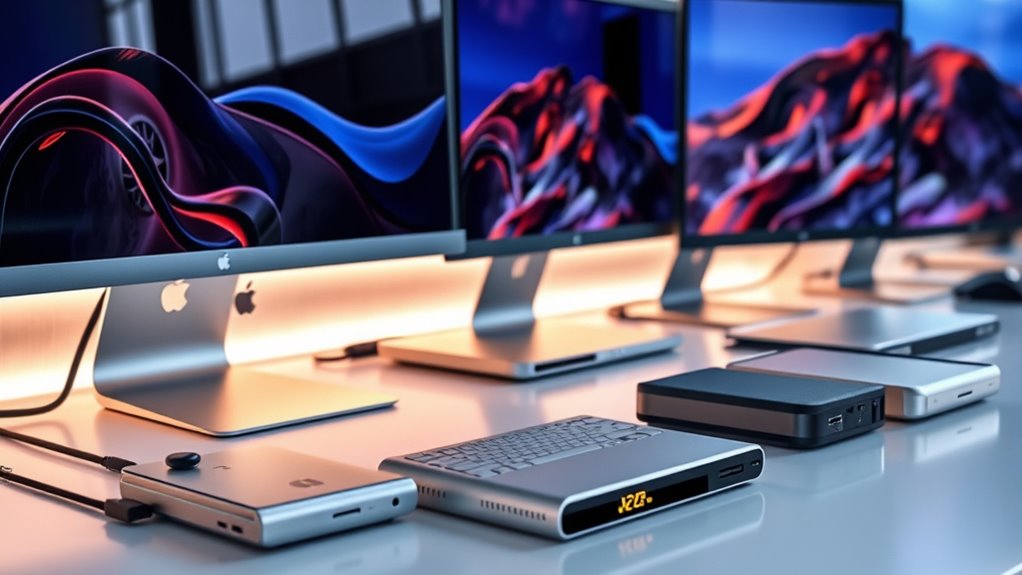

For Apple Silicon Mac users seeking reliable expansion, DisplayLink docks offer a flexible way to connect multiple monitors and peripherals. The best options, like the Minisopuru DS808, excel in supporting multiple displays with extensive ports, making them ideal for productivity. Meanwhile, models such as the MOKiN 9-in-2 shine with compact design and dual HDMI output, perfect for space-conscious setups. However, tradeoffs often involve balancing performance, compatibility, and price. Some docks may struggle with high-resolution displays or require specific driver setups, which can complicate usage. Continue reading for a detailed breakdown that helps you pick the right dock for your Apple Silicon Mac.

Get audio and creator gear delivered free with Prime
- Fast, free delivery on millions of items
- Prime Video, Amazon Music and more included
- Member-only deals all year
Complete the kit


Key Takeaways
- The most versatile docks support multiple 4K displays and a wide array of ports, but often come at a higher price.
- Compatibility and driver support are key; some docks need specific configurations for Apple Silicon Macs to run smoothly.
- Compact designs are appealing but may limit port options or power delivery capabilities.
- Higher-priced premium docks tend to offer better build quality and more reliable performance, especially for professional workflows.
- Not all docks are equally future-proof; check for firmware updates and driver support for long-term reliability.
| Minisopuru DS808 DisplayLink Docking Station with 3 Monitors and 12 Ports |  | Best for Multi-Monitor Power Users | Number of Monitors Supported: 3 | Ports: 2 HDMI, 2 DisplayPort, 2 USB-A 3.2 Gen1, 1 USB-C 3.2 Gen1, 2 USB-A 2.0, Ethernet, 3.5mm audio/mic | Power Delivery: 100W USB-C PD | VIEW ON AMAZON | See Our Full Breakdown |
| MOKiN 9-in-2 USB-C Docking Station for MacBook Pro/Air with Dual HDMI |  | Best for Compact Dual-Monitor Setup | Ports: 2x HDMI, 2x USB 3.0, 1x USB 2.0, SD/microSD, Gigabit Ethernet, USB-C 100W PD, Thunderbolt 3 | Max Resolution: 4K@60Hz (single), 4K@30Hz (dual) | Data Transfer Speed: Up to 5Gbps | VIEW ON AMAZON | See Our Full Breakdown |
| iVANKY 14-in-1 Triple DisplayLink Docking Station for MacBook Pro/Mac |  | Best for Extensive Connectivity & Multi-Monitor Power Users | Display Outputs: 3x HDMI 4K@60Hz | USB Ports: 4x USB-A 3.2, 2x USB-C (PD & charging) | Ethernet: Gigabit Ethernet | VIEW ON AMAZON | See Our Full Breakdown |
| MOKiN USB-C Docking Station for MacBook Pro and Air, Dual 4K HDMI, 3 USB 3.0 Ports, SD/TF Card Reader, 100W Power Delivery |  | Best for Portable Dual 4K Setup for Intel-based Macs | Ports: 2x HDMI, 3x USB 3.0, SD/TF card reader, USB-C 100W PD | Max Resolution: 4K@60Hz (dual monitors) | Data Transfer Speed: Up to 5Gbps | VIEW ON AMAZON | See Our Full Breakdown |
| Kensington SD5910T DisplayLink Thunderbolt 4 Docking Station (K35233NA), Black |  | Best for High-End Multi-Monitor Setups with Future-Proofing | Display Outputs: 2x HDMI, 1x DisplayPort, 2x Thunderbolt 4 | Max Display Support: Quad 4K@60Hz on M-series chips | USB Ports: 2x Thunderbolt 4, 1x USB-C, 2x USB-A | VIEW ON AMAZON | See Our Full Breakdown |
| WAVLINK DisplayLink Docking Station with 3 Monitors, 15-in-1 USB-C Hub for MacBook and Windows Laptops |  | Best Overall for Versatile Multi-Monitor Power | Number of Monitors Supported: 3 | Video Outputs: 3 HDMI, 2 DisplayPort | USB Ports: 3 USB-A 5Gbps, 2 USB-C 10Gbps | VIEW ON AMAZON | See Our Full Breakdown |
| iVANKY FusionDock Pro 2 Triple Display DisplayLink Docking Station for Windows/MacBook Pro with 180W Adapter |  | Best for High-Performance Multitasking with Triple 4K Support | Ports: 20-in-1 (USB-C, USB-A, HDMI, DisplayPort, Ethernet, SD/TF) | Max Display Output: Triple 4K@60Hz | Power Adapter: 180W | VIEW ON AMAZON | See Our Full Breakdown |
| WAVLINK 14-in-1 DisplayLink USB-C Docking Station, Dual Monitor Support for Mac M1-M4 & Windows |  | Best for Broad Compatibility and Dual 5K/4K Displays | Ports: 2x DisplayPort, 2x HDMI, USB-A, Ethernet, SD/TF, audio | Max Display Resolution: Dual 5120×1440@60Hz or 4096×2160@60Hz | Power Delivery: Up to 100W | VIEW ON AMAZON | See Our Full Breakdown |
| StarTech Universal USB-C Triple 4K Dock for MacBook Pro, Air & Windows |  | Best for Enterprise-Grade Reliability with Triple 4K Support | Compatibility: Windows, MacOS, ChromeOS, Ubuntu | Display Support: Up to three 4K monitors at 60Hz/30Hz | Power Delivery: 100W | VIEW ON AMAZON | See Our Full Breakdown |
| Plugable 7-in-1 USB-C DisplayLink Dock with Dual 4K HDMI and 100W Power Delivery |  | Best Compact Dock for Dual 4K and On-the-Go Use | VIEW ON AMAZON | See Our Full Breakdown | |||
| WAVLINK DisplayLink Docking Station for Dual 4K@60Hz Monitors (Mac, Windows, ChromeOS) |  | Best for Versatile Multi-Display Setups | Max Resolution: 4K @ 60Hz (dual monitors) | Video Ports: 2 HDMI, 2 DisplayPort | USB Ports: 6 x USB 3.0 Type-A | VIEW ON AMAZON | See Our Full Breakdown |
| Dock for 13″ MacBook Air (M2-M5) – Dual 4K@60Hz, 2x Thunderbolt 4 USB-C, MagSafe |  | Best for Space-Saving MacBook Air Users | Model Compatibility: MacBook Air 13″ (2022 & after) | Ports: 2x Thunderbolt 4, HDMI, Ethernet, 2x USB-A, audio jack | Transfer Speed: up to 40 Gbps | VIEW ON AMAZON | See Our Full Breakdown |
| displaylink docks for apple silicon mac | Ports | Compatibility | Power Delivery |
|---|---|---|---|
| Minisopuru DS808 DisplayLink D | 2 HDMI, 2 DisplayPort, 2 USB-A 3.2 Gen1, 1 USB-C 3.2 Gen1, 2 USB-A 2.0, Ethernet, 3.5mm audio/mic | Windows, Chrome OS, Ubuntu, Android, MacBook Pro with Thunderbolt 3/4/USB-C | 100W USB-C PD |
| MOKiN 9-in-2 USB-C Docking Sta | 2x HDMI, 2x USB 3.0, 1x USB 2.0, SD/microSD, Gigabit Ethernet, USB-C 100W PD, Thunderbolt 3 | MacBook Pro/Air 2017-2021 with 2 Thunderbolt 3 ports | — |
| iVANKY 14-in-1 Triple DisplayL | — | Most MacBooks with full USB-C port | Up to 100W |
| MOKiN USB-C Docking Station fo | 2x HDMI, 3x USB 3.0, SD/TF card reader, USB-C 100W PD | Intel-based MacBooks with Thunderbolt 3 or USB-C with DisplayPort Alt Mode | — |
| Kensington SD5910T DisplayLink | — | — | 96W (certified) |
| WAVLINK DisplayLink Docking St | — | — | Up to 100W |
| iVANKY FusionDock Pro 2 Triple | 20-in-1 (USB-C, USB-A, HDMI, DisplayPort, Ethernet, SD/TF) | — | — |
| WAVLINK 14-in-1 DisplayLink US | 2x DisplayPort, 2x HDMI, USB-A, Ethernet, SD/TF, audio | Windows 10/11, macOS 11+, Chrome OS, Ubuntu | Up to 100W |
| StarTech Universal USB-C Tripl | USB-C, HDMI, DisplayPort | Windows, MacOS, ChromeOS, Ubuntu | 100W |
| Plugable 7-in-1 USB-C DisplayL | — | — | — |
| WAVLINK DisplayLink Docking St | — | Windows 10+, macOS 11+ (Apple Silicon), ChromeOS 100+ | — |
| Dock for 13" MacBook Air | 2x Thunderbolt 4, HDMI, Ethernet, 2x USB-A, audio jack | — | — |
More Details on Our Top Picks
Minisopuru DS808 DisplayLink Docking Station with 3 Monitors and 12 Ports
This dock excels at supporting three monitors with 4K resolution, making it ideal for professionals who need extensive screen real estate. Compared to the MOKiN USB-C Docking Station, the DS808 offers triple monitor support, but it comes with the drawback of requiring DisplayLink driver installation, which may complicate setup on some systems. While it supports a wide array of ports—including Ethernet and audio—it cannot support Linux/Unix systems and has limitations when using HDMI and DisplayPort simultaneously due to display area conflicts. This makes it a strong choice for Windows and Chrome OS users but less suitable for Linux environments.
Pros:- Supports triple 4K@60Hz monitor setup, maximizing screen space
- Multiple ports including Ethernet, audio, and various USB types
- Compatible with a broad range of operating systems including Mac, Windows, and Chrome OS
- Provides 36W power delivery for fast charging and data transfer
Cons:- Requires installation of DisplayLink driver, adding complexity
- Cannot support Linux/Unix systems
- HDMI and DisplayPort cannot be used simultaneously in the same display area
Best for: Power users who need to run triple 4K monitors and connect multiple peripherals simultaneously, especially on Windows or Chrome OS.
Not ideal for: Linux users or those seeking a plug-and-play experience without driver dependencies, since it requires DisplayLink drivers and has limited Linux support.
- Number of Monitors Supported:3
- Ports:2 HDMI, 2 DisplayPort, 2 USB-A 3.2 Gen1, 1 USB-C 3.2 Gen1, 2 USB-A 2.0, Ethernet, 3.5mm audio/mic
- Power Delivery:100W USB-C PD
- Maximum Resolution:4K@60Hz
- Compatibility:Windows, Chrome OS, Ubuntu, Android, MacBook Pro with Thunderbolt 3/4/USB-C
- Size & Compatibility:Supports MacBook Pro, Windows, Chrome OS
Our verdict“This dock suits professionals who need multi-monitor setups and extensive port options but are comfortable with driver installation and system compatibility considerations.”
MOKiN 9-in-2 USB-C Docking Station for MacBook Pro/Air with Dual HDMI
This slim, aluminum-bodied dock provides dual HDMI outputs supporting up to 4K@60Hz on a single monitor, making it suitable for users who prioritize space and simplicity. Unlike the iVANKY FusionDock Pro, which supports triple displays, the MOKiN is limited to dual monitors, but it compensates with a smaller footprint and easier portability. It offers 100W charging, gigabit Ethernet, and a variety of USB ports, making it a good all-around choice for MacBook users who need a straightforward dual-monitor solution. However, dual HDMI support at 4K@60Hz is only available on one monitor at a time; dual display use reduces resolution to 4K@30Hz, which might be a drawback for high-refresh-rate workflows.
Pros:- Supports dual 4K@60Hz output, ideal for crisp display quality
- Slim, portable aluminum design for travel or limited space
- Includes gigabit Ethernet and 100W charging for all-day productivity
- Plug-and-play with no driver installation needed
Cons:- Dual HDMI limits resolution to 4K@30Hz when both are active
- Not compatible with MacBooks with only one Thunderbolt 3 port per side
- Limited to dual display support—no triple or more monitors
Best for: MacBook users who want a compact, efficient dual-monitor setup with high-resolution output and reliable charging.
Not ideal for: Power users needing triple or quad monitor support or those who require the highest refresh rates at 4K.
- Ports:2x HDMI, 2x USB 3.0, 1x USB 2.0, SD/microSD, Gigabit Ethernet, USB-C 100W PD, Thunderbolt 3
- Max Resolution:4K@60Hz (single), 4K@30Hz (dual)
- Data Transfer Speed:Up to 5Gbps
- Compatibility:MacBook Pro/Air 2017-2021 with 2 Thunderbolt 3 ports
- Material:Anodized aluminum
- Size & Weight:Slim, portable
Our verdict“This dock makes sense for MacBook owners seeking a sleek dual-monitor setup with high resolution and hassle-free connectivity.”
iVANKY 14-in-1 Triple DisplayLink Docking Station for MacBook Pro/Mac
The iVANKY FusionDock Pro stands out for supporting triple 4K@60Hz displays, making it ideal for creative professionals or multi-taskers who need maximum screen real estate. Compared with the MOKiN 9-in-2, it offers triple monitor support, but it requires installing the DisplayLink driver, which can be a hassle for some users. Its broad port selection—including multiple USB-A, USB-C, Ethernet, and SD cards—facilitates extensive device connectivity. The dock’s compatibility with most MacBooks that have a full-function USB-C port adds flexibility. However, the reliance on DisplayLink drivers means ongoing driver updates and potential compatibility issues, and some ports may only function properly after driver installation.
Pros:- Supports triple 4K@60Hz monitor setup for maximum workspace
- Numerous USB ports, including USB-C and USB-A, for versatile device connections
- Power delivery up to 100W for fast charging of MacBook
- Supports gigabit Ethernet and SD card readers for expanded connectivity
Cons:- Requires installation of DisplayLink driver, adding complexity
- Some ports only function after driver setup
- Limited compatibility with older MacBooks lacking full USB-C ports
Best for: Creative professionals and power users seeking maximum connectivity and multi-monitor support on MacBook with full USB-C functionality.
Not ideal for: Users with limited technical setup experience or those seeking a driver-free plug-and-play dock.
- Display Outputs:3x HDMI 4K@60Hz
- USB Ports:4x USB-A 3.2, 2x USB-C (PD & charging)
- Ethernet:Gigabit Ethernet
- Power Delivery:Up to 100W
- Compatibility:Most MacBooks with full USB-C port
- Driver Requirement:DisplayLink driver needed
Our verdict“This dock is designed for users who need extensive multi-monitor support and multiple device connectivity options but are prepared for driver management.”
MOKiN USB-C Docking Station for MacBook Pro and Air, Dual 4K HDMI, 3 USB 3.0 Ports, SD/TF Card Reader, 100W Power Delivery
This compact hub offers dual 4K HDMI at 60Hz, making it suitable for users who value portability and high-quality video output. Unlike the iVANKY FusionDock Pro, which supports triple displays, this MOKiN model is limited to two monitors but is easier to carry and set up. It supports 100W charging, multiple USB 3.0 ports, and SD card slots, providing a well-rounded connection package for Intel-based MacBooks. However, for M1 and M2 Macs, support is limited to a single external monitor, which could be a disappointment for multi-display needs. The device requires Thunderbolt 3 or USB-C with DisplayPort Alt Mode for full functionality.
Pros:- Supports dual 4K@60Hz HDMI output for crisp, high-res display
- Compact, portable design for travel or limited desk space
- Includes multiple USB 3.0 ports and SD card slots
- Provides 100W charging for MacBook power needs
Cons:- Limited to dual 4K support; no triple monitor option
- M1/M2 MacBooks can only support one external display with this dock
- Requires Thunderbolt 3 or compatible USB-C port with DisplayPort Alt Mode
Best for: MacBook users with Intel chips seeking a portable dual-monitor setup with reliable 4K support and multiple connectivity options.
Not ideal for: Those who need triple or quad monitor support or are using M1/M2 MacBooks with multi-display ambitions.
- Ports:2x HDMI, 3x USB 3.0, SD/TF card reader, USB-C 100W PD
- Max Resolution:4K@60Hz (dual monitors)
- Data Transfer Speed:Up to 5Gbps
- Compatibility:Intel-based MacBooks with Thunderbolt 3 or USB-C with DisplayPort Alt Mode
- Material:Plastic and aluminum
- Size & Weight:Small and portable
Our verdict“This dock is perfect for Intel-based MacBook users who prioritize portability and dual 4K output over multi-monitor expansion.”
Kensington SD5910T DisplayLink Thunderbolt 4 Docking Station (K35233NA), Black
The Kensington SD5910T stands out for supporting up to four 4K@60Hz displays on MacBook Pro and Air models with M1, M2, M3, or M4 chips, thanks to its combination of DisplayLink technology and Thunderbolt 4. It offers a robust 96W charging capacity, ensuring your MacBook stays powered during intensive work. Compared with the Minisopuru DS808, which supports three displays, this model supports quadruple screens, making it ideal for advanced multi-tasking environments. Its 16-in-1 port selection and durable recycled aluminum casing add to its appeal, although the necessity of driver updates for DisplayLink and the optional mounting accessories might be a hassle for some users. The device’s high-end performance aligns with professional workstation needs.
Pros:- Supports up to Quad 4K@60Hz external displays on M-series MacBooks
- 96W charging with off-host power for peripherals
- Includes a comprehensive set of ports: HDMI, DisplayPort, Thunderbolt 4, USB-A, USB-C, SD/microSD, Ethernet
- Constructed with environmentally friendly recycled aluminum
Cons:- Requires driver updates and setup complexity for DisplayLink functionality
- Mounting bracket and cable lock sold separately, adding to cost
- More expensive than simpler docks with fewer features
Best for: Power users and creative professionals who require four external monitors and high-speed connectivity on MacBook with M1/M2/M3/M4 chips.
Not ideal for: Casual users or those with limited space or budget, since this is a premium, feature-rich dock with additional setup considerations.
- Display Outputs:2x HDMI, 1x DisplayPort, 2x Thunderbolt 4
- Max Display Support:Quad 4K@60Hz on M-series chips
- USB Ports:2x Thunderbolt 4, 1x USB-C, 2x USB-A
- Power Delivery:96W (certified)
- Ethernet:2.5Gbps
- Material:Recycled aluminum
Our verdict“This docking station is designed for demanding professionals needing multiple high-resolution displays and extensive connectivity in a durable, future-proof package.”
WAVLINK DisplayLink Docking Station with 3 Monitors, 15-in-1 USB-C Hub for MacBook and Windows Laptops
This WAVLINK dock stands out for supporting up to three monitors with a combination of HDMI and DisplayPort outputs, making it ideal for users who need extensive multitasking—especially compared with the more limited dual-monitor setups of the Plugable 7-in-1. Its wide array of connectivity options, including Ethernet, SD/TF card readers, and multiple USB ports, enhances workspace flexibility. The 100W power delivery ensures your MacBook or Windows laptop stays charged during intensive work sessions. However, it relies on DisplayLink driver installation, which can introduce setup complexity and potential compatibility issues, especially with macOS updates. The fact that HDMI and DisplayPort cannot be used simultaneously on the same display channel is a minor limitation but worth noting for users wanting maximum flexibility.
Pros:- Supports triple monitor setups for increased productivity
- Extensive connectivity including Ethernet and SD/TF slots
- Power delivery up to 100W for fast charging
Cons:- Requires DisplayLink driver installation, not plug-and-play
- Limited to office or productivity use, not suitable for gaming
Best for: Professionals needing a reliable, multi-monitor setup for productivity and data analysis.
Not ideal for: Gamers or video editors who require native plug-and-play support for high-end graphics without driver dependencies.
- Number of Monitors Supported:3
- Video Outputs:3 HDMI, 2 DisplayPort
- USB Ports:3 USB-A 5Gbps, 2 USB-C 10Gbps
- Power Delivery:Up to 100W
- Ethernet:Gigabit Ethernet
- SD/TF Card Slots:Yes
Our verdict“This dock is perfect for office professionals seeking multiple screens and diverse connections, accepting a driver dependency tradeoff.”
iVANKY FusionDock Pro 2 Triple Display DisplayLink Docking Station for Windows/MacBook Pro with 180W Adapter
The iVANKY FusionDock Pro 2 excels in delivering triple 4K@60Hz displays, making it an excellent choice for creative professionals and power users who need maximum display clarity—outperforming many docks like the WAVLINK when it comes to pure video output. Its 20-in-1 port array ensures versatile connectivity, including fast 10Gbps data transfer and SD/TF 3.0 slots, ideal for content creators. The 180W power supply can charge laptops up to 100W and USB-C devices up to 20W, supporting demanding workflows. The primary tradeoff is the reliance on DisplayLink drivers, which can introduce compatibility hiccups, especially on macOS. Still, the included warranty and robust feature set make it suited for serious multitasking environments.
Pros:- Supports triple 4K@60Hz displays for maximum clarity
- 20-in-1 port configuration with fast data transfer
- 180W charger supports high-powered laptops
Cons:- Requires DisplayLink driver installation, which can cause compatibility issues
- Complex setup for non-technical users
Best for: Creative professionals and developers needing multiple 4K displays and extensive connectivity in one dock.
Not ideal for: Casual users or gamers who prioritize native plug-and-play and high-end gaming performance.
- Ports:20-in-1 (USB-C, USB-A, HDMI, DisplayPort, Ethernet, SD/TF)
- Max Display Output:Triple 4K@60Hz
- Power Adapter:180W
- Laptop Charging:Up to 100W
- Ethernet Speed:2.5Gbps
- Warranty:24 months
Our verdict“Ideal for demanding multitaskers who prioritize multiple 4K displays and extensive connectivity, accepting driver dependency for high performance.”
WAVLINK 14-in-1 DisplayLink USB-C Docking Station, Dual Monitor Support for Mac M1-M4 & Windows
This WAVLINK model offers broad compatibility, supporting Windows, macOS 11+, Chrome OS, and even Android via DisplayLink technology—making it versatile for mixed-device environments. Its support for dual 5K/4K monitors provides crisp visuals, perfect for creative tasks or data analysis on Macs M1-M4, unlike docks with only single display options. The 14-in-1 port array, including Ethernet, SD/TF, and audio jacks, makes it a comprehensive station for varied workflows. The main drawback is the necessity of DisplayLink driver installation, which can lead to occasional compatibility issues and limits on Linux or iOS devices. Its support for high-resolution dual displays makes it a standout for users needing crisp visuals across multiple devices.
Pros:- Supports dual 5K/4K monitors for sharp visuals
- Broad OS compatibility including macOS, Windows, Chrome OS
- Includes SD/TF card readers and Ethernet
Cons:- Requires DisplayLink driver installation, not fully plug-and-play
- Limited to one video port per display, not multi-input for single monitor
Best for: Mac users with M1-M4 chips and Windows users seeking extensive ports and dual high-res displays.
Not ideal for: Linux or iOS device users, or those seeking native plug-and-play without driver dependencies.
- Ports:2x DisplayPort, 2x HDMI, USB-A, Ethernet, SD/TF, audio
- Max Display Resolution:Dual 5120×1440@60Hz or 4096×2160@60Hz
- Power Delivery:Up to 100W
- Data Transfer:USB-A 5Gbps; SD/TF up to 312MB/s
- Compatibility:Windows 10/11, macOS 11+, Chrome OS, Ubuntu
- Driver Requirement:DisplayLink
Our verdict“Best suited for users needing dual high-resolution displays across multiple operating systems, accepting driver requirements.”
StarTech Universal USB-C Triple 4K Dock for MacBook Pro, Air & Windows
This StarTech dock delivers triple 4K monitor support, a feature that appeals to enterprise users and large-scale deployments. Its compatibility with MacBook Pro, Air, and Windows devices ensures broad usability, and the 100W power delivery simplifies charging workflows. Compared with the more flexible but driver-dependent options like the WAVLINK and iVANKY docks, StarTech’s strength lies in its enterprise-grade reliability and straightforward setup. However, it requires DisplayLink drivers for two of the three monitors, and the limited refresh rate options can restrict high-frame-rate applications. This dock is best for professional environments where stability and multiple screens are key priorities.
Pros:- Supports three 4K monitors for productive multitasking
- High 100W power delivery for charging laptops
- Compatible across major OS platforms
Cons:- Requires DisplayLink drivers, not plug-and-play
- Limited to specific refresh rates depending on port
Best for: IT departments or professionals deploying reliable multi-monitor setups in business environments.
Not ideal for: Creative professionals or gamers needing the latest high-refresh-rate displays or native plug-and-play simplicity.
- Compatibility:Windows, MacOS, ChromeOS, Ubuntu
- Display Support:Up to three 4K monitors at 60Hz/30Hz
- Power Delivery:100W
- Ports:USB-C, HDMI, DisplayPort
Our verdict“A solid choice for enterprise or professional setups requiring reliable triple 4K support, with driver dependency as a consideration.”
Plugable 7-in-1 USB-C DisplayLink Dock with Dual 4K HDMI and 100W Power Delivery
The Plugable 7-in-1 dock offers a compact yet versatile solution with dual 4K@60Hz HDMI outputs, making it highly suitable for users who need crisp visuals without bulk. Its 100W power delivery keeps laptops charged efficiently during presentations or remote work, matching the needs of many MacBook users. However, like other DisplayLink-based docks, it requires driver installation, which could complicate setup—especially on macOS. Its smaller size makes it a strong choice for travel and portable workflows, but the absence of additional ports limits expandability compared to larger docks like the iVANKY or WAVLINK models.
Pros:- Supports dual 4K displays at 60Hz for high-quality visuals
- Provides 100W pass-through charging for laptops
- Compact and portable design for mobility
Cons:- DisplayLink driver required, not plug-and-play
- Charging cable sold separately and setup may be complex on macOS
Best for: Travelers or remote workers needing reliable dual 4K display support in a small form factor.
Not ideal for: Power users who require many USB ports or multiple display inputs beyond HDMI, or those seeking native plug-and-play solutions.
Our verdict“A practical choice for on-the-go professionals needing dual high-resolution displays with minimal setup bulk, accepting driver installation for portability.”
WAVLINK DisplayLink Docking Station for Dual 4K@60Hz Monitors (Mac, Windows, ChromeOS)
This dock stands out for its ability to support dual 4K@60Hz monitors through a single USB connection, making it a flexible choice for users needing high-resolution output on multiple screens. Compared with the Dock for 13″ MacBook Air, which is tailored specifically for MacBook Air models, the WAVLINK offers broader compatibility across Windows, ChromeOS, and Apple Silicon Macs. The tradeoff is that users must install DisplayLink drivers, which can introduce slight latency and complexity, and it doesn’t support laptop charging, limiting portability for on-the-go use. Its broad array of ports—2 HDMI, 2 DisplayPort, 6 USB 3.0, and Ethernet—enables comprehensive connectivity, ideal for multi-device workflows. However, it’s not suitable for Linux or high-frame-rate tasks like gaming or video editing that require DRM or high refresh rates.
Pros:- Supports dual 4K@60Hz monitors through a single USB connection
- Flexible display output options with HDMI and DisplayPort
- Broad compatibility with Windows, macOS (including Apple Silicon), and ChromeOS
- Multiple USB ports and Gigabit Ethernet for comprehensive connectivity
Cons:- Requires DisplayLink driver installation, adding setup complexity
- Does not support laptop charging, limiting portability
Best for: Professionals who need multiple high-resolution displays and broad OS compatibility in a single dock.
Not ideal for: Linux users or those seeking a dock capable of charging their laptop during use.
- Max Resolution:4K @ 60Hz (dual monitors)
- Video Ports:2 HDMI, 2 DisplayPort
- USB Ports:6 x USB 3.0 Type-A
- Total Ports:11
- Network:Gigabit Ethernet
- Audio:3.5mm audio jack
- Compatibility:Windows 10+, macOS 11+ (Apple Silicon), ChromeOS 100+
- Dimensions:8.9 x 3.34 x 1.1 inches
- Weight:8.8 ounces
Our verdict“This dock is best suited for users who prioritize multi-monitor setups and broad OS support over portability or charging ability.”
Dock for 13″ MacBook Air (M2-M5) – Dual 4K@60Hz, 2x Thunderbolt 4 USB-C, MagSafe
This dock is designed exclusively for the MacBook Air 13″ (2022 and later), making it an excellent choice for dedicated MacBook Air owners who want a sleek, space-efficient solution. Its vertical, aluminum design not only saves desk space but also improves airflow, helping keep the device cool during extended use. Unlike the WAVLINK, which offers broad compatibility but lacks charging capabilities, this dock provides high-speed Thunderbolt 4 ports with transfer speeds up to 40 Gbps, plus HDMI, Ethernet, and USB-A connections, all tailored for MacBook Air’s form factor. The tradeoff is its limited compatibility—only for MacBook Air 13″ (2022 and newer)—and the need to remove cases before docking, which may inconvenience some users. Its sturdy, premium build makes it ideal for those seeking a minimalistic, dedicated workstation accessory.
Pros:- Vertical, space-saving design improves airflow and saves desk space
- High-speed Thunderbolt 4 ports with up to 40 Gbps transfer rate
- Secure, sleek fit tailored for MacBook Air 13″ (2022 and later)
- Premium alloy build with a modern aesthetic
Cons:- Limited compatibility to specific MacBook Air models
- Requires removal of MacBook covers before docking
- Does not support laptop charging during use
Best for: MacBook Air 13″ users wanting a space-efficient, high-speed docking solution that matches their device’s design.
Not ideal for: Owners of other MacBooks or Windows laptops who need broader compatibility or higher power delivery.
- Model Compatibility:MacBook Air 13″ (2022 & after)
- Ports:2x Thunderbolt 4, HDMI, Ethernet, 2x USB-A, audio jack
- Transfer Speed:up to 40 Gbps
- Design:Vertical, alloy, space gray
- Heat Dissipation:Efficient
Our verdict“This dock is perfect for MacBook Air 13" owners seeking a sleek, dedicated, high-speed connection hub that fits seamlessly into a minimalist workspace.”
How We Picked
Products were evaluated based on their ability to reliably support Apple Silicon Macs with DisplayLink technology, focusing on performance, compatibility, and build quality. We prioritized docks with broad port options, high-resolution display support, and strong power delivery to ensure they meet the demands of professional and everyday use. Ease of setup and driver stability also played a significant role, as user experience can vary widely across models. The ranking reflects a balance between value and premium features, highlighting options suitable for different user needs and budgets.Factors to Consider When Choosing Displaylink Docks For Apple Silicon Mac
Choosing the right DisplayLink dock for an Apple Silicon Mac involves considering several key factors beyond just port count. Understanding how compatibility, performance, and future-proofing influence your experience will help you avoid common pitfalls and select a dock that truly fits your workflow.Compatibility and Driver Support
Not all DisplayLink docks are optimized for Apple Silicon Macs, so verifying compatibility is essential. Some docks may require specific driver installations or firmware updates to work reliably. Ensure the dock explicitly states support for macOS on Apple Silicon, and check user reviews for reports of driver stability. Investing in a model with ongoing software support can save frustration and improve long-term reliability.
Number of Monitors and Resolution Support
Think about your display needs—whether you require dual 4K monitors or more. The number of supported displays and maximum resolution directly impacts your productivity and visual clarity. Docks with DisplayLink technology often support multiple high-resolution screens, but verify the specifications for your specific setup. Overloading a dock beyond its supported resolution can cause flickering or disconnects, so choose one aligned with your display requirements.
Power Delivery and Charging Capabilities
Many users overlook power delivery (PD), which affects how well your MacBook charges during use. A dock with sufficient PD (often 85W or higher) can keep your MacBook powered without needing separate chargers. Be cautious of docks that only supply minimal power, especially if you use power-hungry peripherals or have a MacBook Air that benefits from faster charging. Balancing port count and power delivery is key to a clutter-free, efficient workspace.
Build Quality and Ease of Use
Durability and user-friendly features matter as much as technical specs. Look for docks with sturdy construction, heat management, and straightforward setup. Some models include features like external power adapters, separate power switches, or cable management options that enhance usability. A poorly made dock may develop connectivity issues or fail prematurely, so consider brand reputation and warranty support as indicators of quality.
Price and Future-Proofing
While budget options can be tempting, investing in a higher-quality dock often pays off through increased stability and versatility. Look for models that support upcoming standards, firmware updates, and higher resolutions. Consider your long-term needs—buying a slightly more expensive dock with better specifications can extend its useful life and save money over multiple upgrades. Keep in mind that not all docks will work flawlessly with future macOS updates, so choosing a reputable brand matters.
Frequently Asked Questions
Will all DisplayLink docks work with my Apple Silicon Mac?
Most DisplayLink docks are compatible with Apple Silicon Macs, but not all are optimized for this platform. Compatibility depends on driver support and firmware updates specific to Apple Silicon. It’s important to verify that the dock explicitly states support for macOS on Apple Silicon and that recent user feedback confirms reliable operation. Choosing a model with ongoing support reduces the risk of encountering driver issues or incompatibility as software updates roll out.
Can I connect more than two 4K monitors with a DisplayLink dock on my Mac?
Yes, many DisplayLink docks support multiple 4K monitors, with some models capable of supporting up to three or more screens simultaneously. However, the actual number and resolution depend on the specific dock’s hardware and driver capabilities. It’s crucial to check the maximum supported resolution per port and the total number of displays supported before purchase. Overloading a dock beyond its specifications can lead to flickering, lag, or disconnections.
Will a DisplayLink dock affect my MacBook’s performance?
DisplayLink technology offloads video processing to the dock, which generally has minimal impact on your MacBook’s CPU performance. However, using multiple high-resolution displays or intensive peripherals through the dock can increase power consumption and cause some performance lag if the dock’s bandwidth is limited. Choosing a model with sufficient bandwidth and good driver support helps maintain smooth operation without noticeable performance drops.
Is it better to choose a dock with more ports or higher resolution support?
This depends on your specific needs. If you require multiple peripherals, a dock with more ports will be beneficial. Conversely, if your workflow relies on high-resolution displays, prioritize models that support 4K or higher resolutions. Many docks strike a balance by offering both, but you might need to compromise if your budget is limited. Carefully assess your daily tasks to determine whether port variety or display quality takes precedence.
How long can I expect a DisplayLink dock to last?
The longevity of a DisplayLink dock hinges on build quality, usage, and driver support. Well-made models from reputable brands tend to last several years, especially with regular firmware updates. Cheaper or poorly constructed docks may encounter issues sooner, such as port failure or driver incompatibility. Investing in a higher-quality dock with a good warranty can ensure reliable performance over time, even as your needs evolve.
Conclusion
For general users seeking a reliable, all-around solution, the Minisopuru DS808 stands out as the best overall due to its extensive port options and multi-monitor support. Buyers on a budget or with simpler needs will find the MOKiN 9-in-2 offers excellent value with dual HDMI outputs in a compact form. Professionals requiring premium build and maximum performance should consider the Kensington SD5910T or the StarTech Triple 4K Dock. Beginners or those new to DisplayLink technology may prefer models with straightforward setup, like the Plugable 7-in-1. Ultimately, your choice should align with your display needs, budget, and long-term use expectations.Halloween Picks

9 ft Halloween Inflatable Haunted Castle with Dragon and Ghost

Thuodo 8 FT Tall Halloween Inflatable Three-Headed Dragon with LEDs

10 ft Halloween Inflatable Archway with Built-in LEDs
As an affiliate, we earn on qualifying purchases.