
Your home network can break under modern streaming and backups because too many devices compete for limited bandwidth, especially during peak times. Activities like online gaming, HD streaming, and backups all draw heavily on your internet connection, causing slowdowns and buffering. Without proper management, your network gets overwhelmed, leading to dropped connections and frustration. To keep everything running smoothly, understanding how to manage bandwidth better is essential—there’s more to learn that can improve your experience.
Key Takeaways
- Increased device count and bandwidth-intensive activities overwhelm limited network resources.
- Simultaneous streaming, gaming, and backups compete for bandwidth, causing congestion.
- Outdated or insufficient routers struggle to handle modern high-demand applications.
- Lack of bandwidth prioritization leads to buffering, lag, and dropped connections.
- Peak usage times exacerbate network overload, reducing performance and stability.
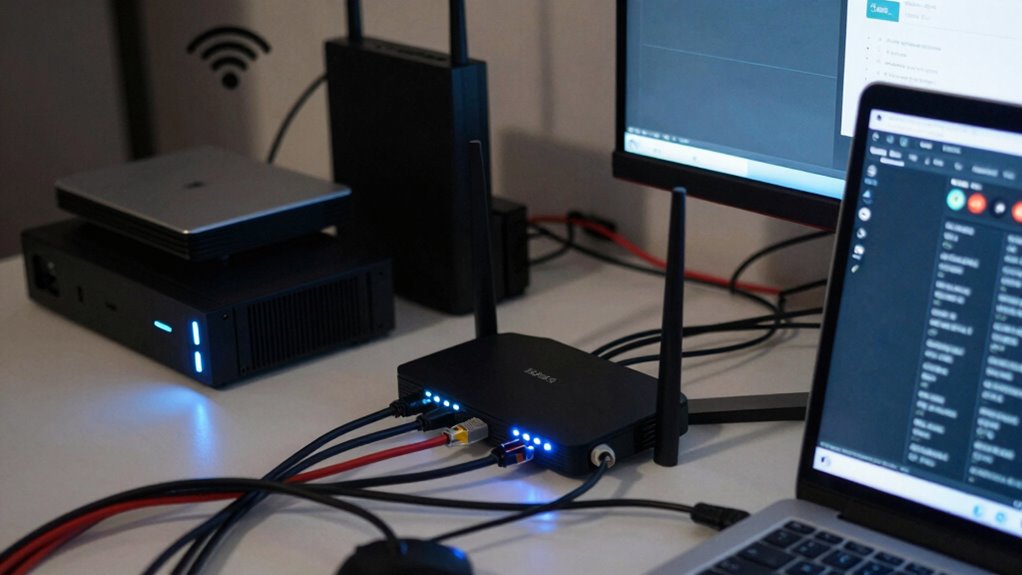
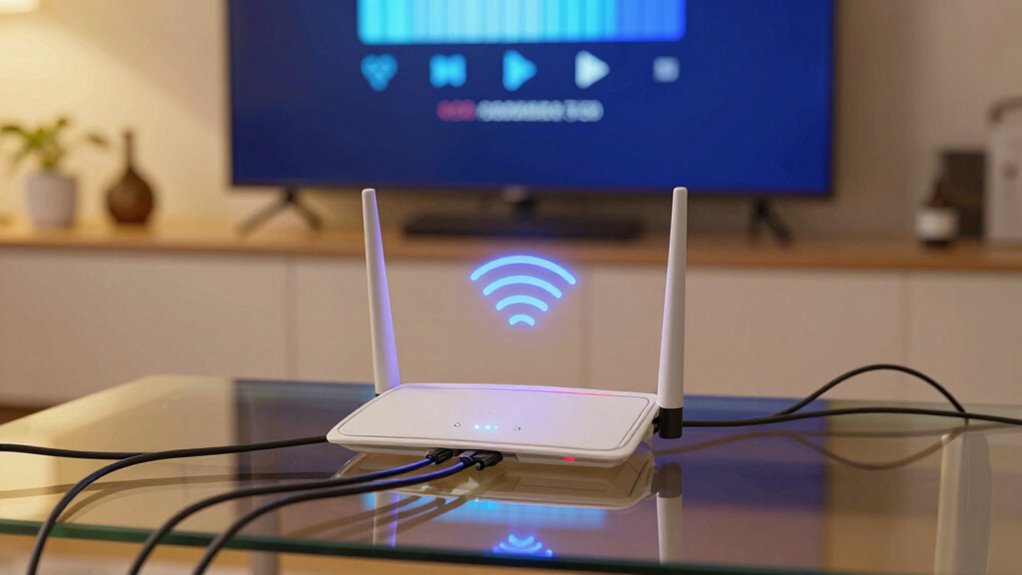
In today’s connected world, a stable home network is essential for smooth streaming experiences, but many households still face frustrating issues that disrupt their entertainment. One common culprit is network congestion, which happens when too many devices compete for limited internet resources at the same time. When you’re streaming a high-definition movie, playing online games, or backing up files to the cloud, all these activities draw on your network’s bandwidth. If your network isn’t properly managed, these simultaneous demands can cause buffering, lag, or dropped connections, ruining your viewing experience.
To prevent this, effective bandwidth management becomes crucial. Bandwidth management involves prioritizing traffic so that the most important activities—like streaming or video calls—get the bandwidth they need first. Without it, background downloads, updates, or smart home devices can hog your connection, leaving little room for streaming. This lack of prioritization leads to congestion, especially during peak hours when many devices are active. You might notice that your streaming stalls or your video quality drops unexpectedly, even if your internet plan promises high speeds.
Prioritize streaming and calls with bandwidth management to prevent congestion and buffering during peak hours.
Many households underestimate the impact of multiple devices connected simultaneously. For example, your kids might be gaming online while you’re trying to stream a show, and your smart devices could be uploading footage or running updates in the background. All these processes eat into your available bandwidth, causing congestion that slows down your entire network. Without proper management, your network becomes overwhelmed, and your streaming quality suffers as a result. Understanding how network congestion affects your streaming can help you implement better strategies to avoid issues. Additionally, considering bandwidth capacity is vital to ensure your network can handle peak activity without degradation.
Managing your home network can involve simple steps like setting up Quality of Service (QoS) rules in your router. QoS allows you to prioritize streaming devices over other less time-sensitive activities. Additionally, updating your router firmware or upgrading to a more advanced device can improve how your network handles multiple demands. It’s also beneficial to consider smart home device traffic, which can often be overlooked but significantly impact bandwidth during peak usage times. Being aware of bandwidth allocation ensures you distribute your internet resources more effectively. It’s also helpful to schedule large downloads or backups during off-peak hours to reduce congestion during prime streaming times.
In essence, the key to avoiding network breakdowns under the pressure of streaming and backups lies in understanding and controlling bandwidth management. When you actively prioritize your network traffic, you reduce congestion and ensure smoother, uninterrupted entertainment. By taking these steps, you make sure your home network can handle the modern demands of multiple devices and high-bandwidth activities without crashing or buffering.
As an affiliate, we earn on qualifying purchases.
Frequently Asked Questions
How Can I Prioritize Bandwidth for Streaming Devices?
To prioritize bandwidth for streaming devices, you should implement device prioritization through your router’s Quality of Service (QoS) settings. This helps reduce network congestion by giving your streaming devices higher priority over other devices. Access your router’s admin panel, locate QoS options, and assign higher priority levels to your streaming devices. Doing this guarantees smoother streaming experiences, even when multiple devices are connected and active on your network.
What Hardware Upgrades Improve Home Network Stability?
Upgrading your hardware can greatly boost home network stability. Mesh systems expand coverage seamlessly, reducing dead spots, while network segmentation isolates high-bandwidth devices, preventing congestion. You might worry about complexity, but these upgrades are user-friendly and cost-effective. With a mesh system and proper segmentation, you’ll enjoy smoother streaming, faster backups, and fewer disconnects, making your network more reliable and ready for all your digital needs.
How Do I Identify the Devices Causing Network Congestion?
To identify devices causing network congestion, start with device identification tools like your router’s built-in network monitoring features. Access your router’s admin panel and check the connected devices list to see which ones are active and consuming bandwidth. Use network monitoring software for detailed insights into data usage per device. This helps you pinpoint the culprits, so you can manage or limit their activity to improve your overall network performance.
Can Changing Wi-Fi Channels Reduce Streaming Interruptions?
Changing Wi-Fi channels can definitely reduce streaming interruptions. Imagine you live in a crowded apartment where multiple networks interfere, causing lag. Switching to a less congested channel, especially with a mesh network or Wi-Fi extenders, improves signal clarity. These tools optimize your setup, minimizing interference. As a result, your streaming becomes smoother, with fewer buffering pauses, ensuring a better viewing experience even during high-demand times.
What Are the Best Practices for Regular Network Maintenance?
To keep your network running smoothly, regularly update your router configurations and firmware, ensuring peak performance. Use strong network security measures like WPA3 encryption and unique passwords to prevent unauthorized access. Restart your router periodically to clear cache and maintain stability. Check for interference from other devices and change Wi-Fi channels if needed. These practices help prevent disruptions during streaming and backups, keeping your home network reliable and secure.
Conclusion
So, next time your streaming lags or backups slow down your internet, ask yourself—are your home networks prepared for the modern demands? Upgrading your equipment, managing bandwidth, and prioritizing devices can make all the difference. Don’t settle for constant interruptions; take control of your network now. After all, isn’t a smooth, reliable connection worth the effort? Your home deserves a network that keeps up with your digital lifestyle.