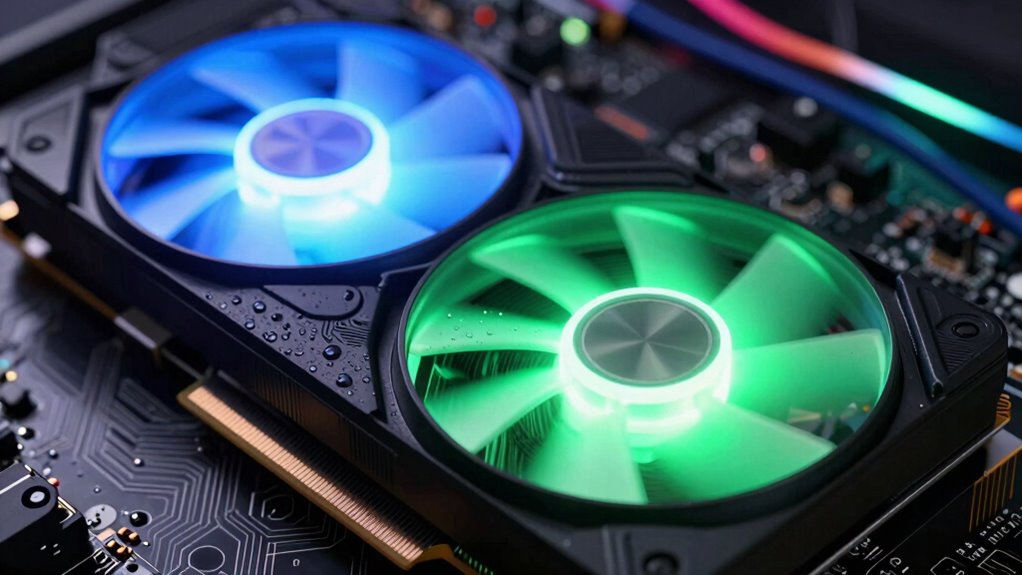

To reduce noise and boost GPU performance simultaneously, focus on optimizing your cooling system. Clean dust from fans and heatsinks to improve airflow, and consider upgrading to higher-quality fans or aftermarket cooling solutions for better heat dissipation. Replacing old thermal paste guarantees efficient heat transfer, lowering temperatures and making your GPU run more quietly. Proper airflow setup and maintenance prevent overheating and thermal throttling. Keep exploring—there’s more simple fixes that could make a big difference.

Get audio and creator gear delivered free with Prime
- Fast, free delivery on millions of items
- Prime Video, Amazon Music and more included
- Member-only deals all year
Key Takeaways
- Replacing old thermal paste improves heat transfer, reducing GPU temperatures and noise simultaneously.
- Regularly cleaning dust from fans and heatsinks enhances airflow and cooling efficiency.
- Upgrading to higher-quality or aftermarket fans can lower temperatures and reduce fan noise.
- Optimizing case airflow by ensuring proper intake and exhaust improves overall cooling performance.
- Monitoring GPU temperatures and adjusting fan curves helps maintain optimal performance and quieter operation.
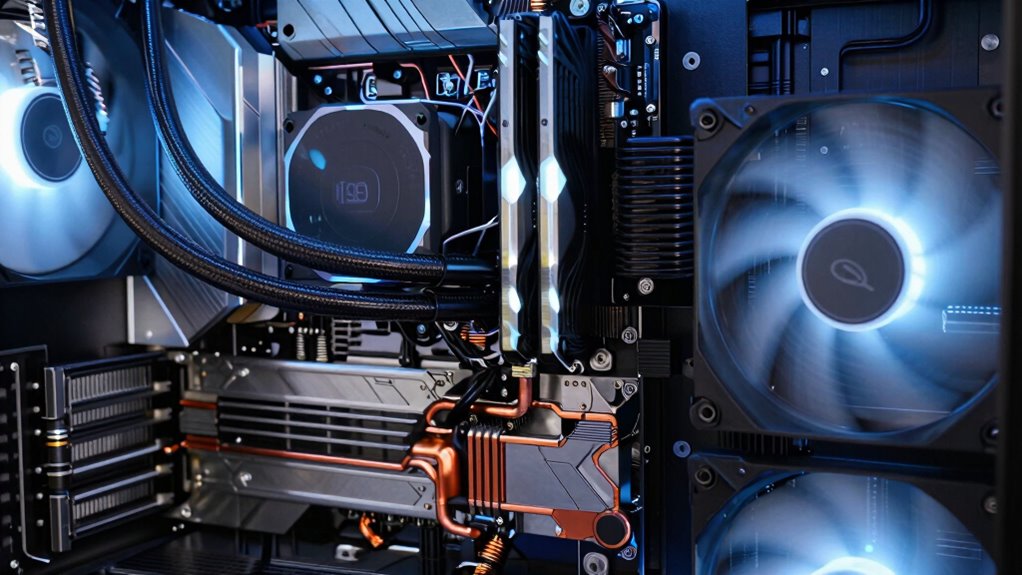
If your GPU is making excessive noise or overheating, a cooling fix can considerably improve both its performance and lifespan. When your graphics card struggles to stay cool, it often ramps up fan speeds, resulting in loud, distracting noises. Over time, heat stress can also degrade components, leading to reduced overclocking stability and potential crashes. Addressing these issues with a proper cooling solution isn’t just about silence—it’s about maintaining peak performance and extending your GPU’s life.
One of the most effective ways to enhance cooling is by applying thermal paste correctly. Over time, the thermal paste between your GPU’s heatsink and the chip can dry out or become less effective, creating a barrier that traps heat instead of dissipating it efficiently. Removing the old thermal paste and applying a fresh, high-quality compound ensures better heat transfer. This simple step can significantly lower operating temperatures, reduce fan noise, and improve overall stability under load.
In addition to thermal paste application, optimizing your GPU’s cooling system can make a noticeable difference. Consider cleaning dust from fans and heatsinks, as dust buildup impairs airflow and increases temperatures. Upgrading to higher-quality fans or installing aftermarket cooling solutions can also help maintain lower temperatures and quieter operation. Proper airflow within your case is crucial—make sure your case fans are set up to promote a smooth flow of air, pulling cool air in and pushing hot air out. Improving thermal management can further enhance cooling efficiency and noise reduction. Regularly inspecting and maintaining your cooling system helps prevent thermal throttling, which can occur when temperatures become too high.
When it comes to overclocking, stability becomes a key concern. Overclocking pushes your GPU beyond its stock settings, which naturally generates more heat. Ensuring your cooling system is up to the task is vital for stable overclocking. A well-maintained cooling setup, combined with fresh thermal paste, allows your GPU to handle higher clocks without overheating or crashing. This means you can enjoy improved performance without sacrificing stability or risking damage. Regularly checking your cooling performance can help you catch potential issues early and prevent overheating.
In short, the cooling fix that helps with GPU noise and performance at once involves cleaning and inspecting your cooling system, reapplying thermal paste, and making sure your airflow setup is optimized. These steps work together to lower temperatures, quiet fan operation, and improve overclocking stability. Taking the time to properly cool your GPU not only keeps it running smoothly but also prolongs its lifespan, saving you from costly replacements in the future. Proper cooling maintenance can make all the difference in maintaining optimal GPU health.
GPU thermal paste replacement kit
As an affiliate, we earn on qualifying purchases.
As an affiliate, we earn on qualifying purchases.
Frequently Asked Questions
Can This Cooling Fix Improve Overall Gaming Frame Rates?
Yes, this cooling fix can improve your overall gaming frame rates by reducing thermal throttling. When your GPU stays cooler, it maintains higher clock speeds, boosting overclocking potential. As a result, you’ll notice smoother gameplay and better performance. Keeping temperatures in check prevents your GPU from slowing down due to overheating, allowing you to enjoy more consistent frame rates during intense gaming sessions.
Is the Cooling Method Compatible With All GPU Models?
This cooling method isn’t compatible with all GPU models, as GPU compatibility varies depending on design and size. You should check your specific GPU’s specifications to guarantee cooling versatility with this fix. Many modern GPUs support this cooling solution, but older or uniquely designed models might not. Always verify compatibility before installation to avoid potential damage and ensure peak performance and noise reduction.
Does the Fix Require Professional Installation or Advanced Skills?
You can tackle this project yourself, but it’s not a walk in the park. The fix generally doesn’t require professional installation, but it does demand some technical expertise. If you’re comfortable with DIY installation and handling delicate components, you can give it a shot. Otherwise, it’s wise to seek help from someone with experience to avoid messing things up. Remember, better safe than sorry!
Will This Cooling Solution Increase Electricity Consumption?
This cooling solution may slightly increase your power consumption, but it’s designed with energy efficiency in mind. You’ll likely notice a minimal impact on your overall energy use, especially if your GPU runs cooler and more efficiently. By optimizing cooling, it can even reduce the workload on your GPU, helping to balance power consumption and performance. Overall, the increase is manageable and often outweighed by the benefits of quieter operation and better performance.
How Long Does the Cooling Fix Typically Last Before Needing Replacement?
Think of the cooling fix like a trusty car tire—it usually lasts about 2-3 years before you notice signs of wear. Typically, it remains effective until thermal degradation begins, which varies based on usage and environment. Keep in mind, replacing it too early shouldn’t affect your warranty if done properly. Regular checks help guarantee your GPU stays cool, quiet, and performance-ready for years.
Conclusion
Now that you’ve discovered this cooling fix, you’re all set to silence that GPU noise and boost performance—no need to rely on medieval methods like dragonfire! With a simple upgrade, your gaming or work sessions become smoother and quieter. Just remember, even in this age of tech, a good cooling solution is still your best armor against overheating. So, gear up, and give your GPU the chill it deserves—your future self will thank you.
Fall Picks
fall essentials
As an affiliate, we earn on qualifying purchases.