When you upload your video, platform processing, compression, and codecs often alter your original audio’s quality, making it sound different. Compression reduces dynamic range and can introduce artifacts, while normalizations and codecs might change loudness and clarity. To maintain your sound, you need to prepare your files carefully and understand how these processes work. If you want to learn how to keep your mix sounding clear, continue exploring these common issues and solutions.
Key Takeaways
- Platform audio compression and codecs can reduce sound fidelity, altering your original mix after upload.
- Automatic normalization and processing adjust loudness levels, impacting your mix’s dynamics and balance.
- Heavy compression or incorrect settings before upload can lead to a lifeless, squashed sound once processed.
- Differences in playback devices and settings can cause your audio to sound different from your original mix.
- Proper file preparation, consistent formats, and testing across platforms help maintain your intended sound quality.

Video Editing Software Pack | Editor, YouTube Downloader, MP3 MP4 Converter, Green Screen App | 10K Transitions for Premiere Pro and Sound Effects | Windows and Mac 64GB USB
10,000+ Premiere Pro Assets Pack: Including transitions, presets, lower thirds, titles, and effects.
As an affiliate, we earn on qualifying purchases.
As an affiliate, we earn on qualifying purchases.
Why Does My Audio Sound Different After Upload?
When you upload your video, you might notice that the audio sounds different than it did during editing. This change often happens because of how different platforms handle audio compression, which can affect sound fidelity. To maintain audio consistency, many platforms compress audio files to save bandwidth, which can reduce clarity and detail. This compression can introduce artifacts or muddy the sound, making it less true to your original mix. Additionally, variations in playback devices and settings can alter how your audio is perceived. To minimize these issues, choose the right upload formats and codecs, and test your videos on different devices. Being aware of audio processing techniques can help you better understand how your sound may change during this process. Recognizing compression artifacts and adjusting your original mix accordingly can also help preserve sound fidelity. Understanding audio codecs and their impact on quality is crucial for optimizing your uploads. Being familiar with bitrate settings and how they influence audio quality can further help you preserve the integrity of your sound during upload. Keeping these factors in mind helps preserve sound fidelity and ensures your audience experiences your audio as you intended.
![Switch Free Audio File Converter – Converts MP3, WAV, WMA, AIFF, DSS, FLAC and Many More Formats [Download]](https://m.media-amazon.com/images/I/A1tQJHn37xL._SL500_.png "Audio for Video: Why Your Mix Changes After Upload 4")
Switch Free Audio File Converter – Converts MP3, WAV, WMA, AIFF, DSS, FLAC and Many More Formats [Download]
Convert over 40 file formats.
As an affiliate, we earn on qualifying purchases.
As an affiliate, we earn on qualifying purchases.
How Do Audio Codecs and Formats Change My Sound?
Audio codecs and formats directly impact how your sound is compressed, stored, and played back. When you select a codec, you influence the final audio quality and file size. Bitrate optimization is key—higher bitrates generally improve sound clarity but increase file size. Codec selection determines how efficiently audio is compressed without sacrificing quality. Some formats prioritize compression, which can lead to loss of detail, while others preserve more of the original sound. Understanding these differences helps you avoid unexpected changes in audio quality after upload. Use this table to compare common codecs: audio codecs. Additionally, efficient compression techniques play a crucial role in maintaining audio fidelity while minimizing file size. Notably, file compatibility is an important factor to consider when choosing codecs for different platforms. Being aware of audio format limitations can also help prevent quality issues during playback and sharing, especially when considering compression artifacts that may occur with certain formats.

136GB Digital Voice Recorder with Playback,9000 Hours Audio Recording Device,Voice Activated Recorder with Noise Reduction,A-B Repeat,Mp3 Player and Password for Lectures Meeting/Classes/Interviews
【PCM Recording and Automatic Noise Reduction】:This digital voice recorder is equipped with advanced dual noise reduction microphones and…
As an affiliate, we earn on qualifying purchases.
As an affiliate, we earn on qualifying purchases.
How Compression Affects My Audio Quality During Upload
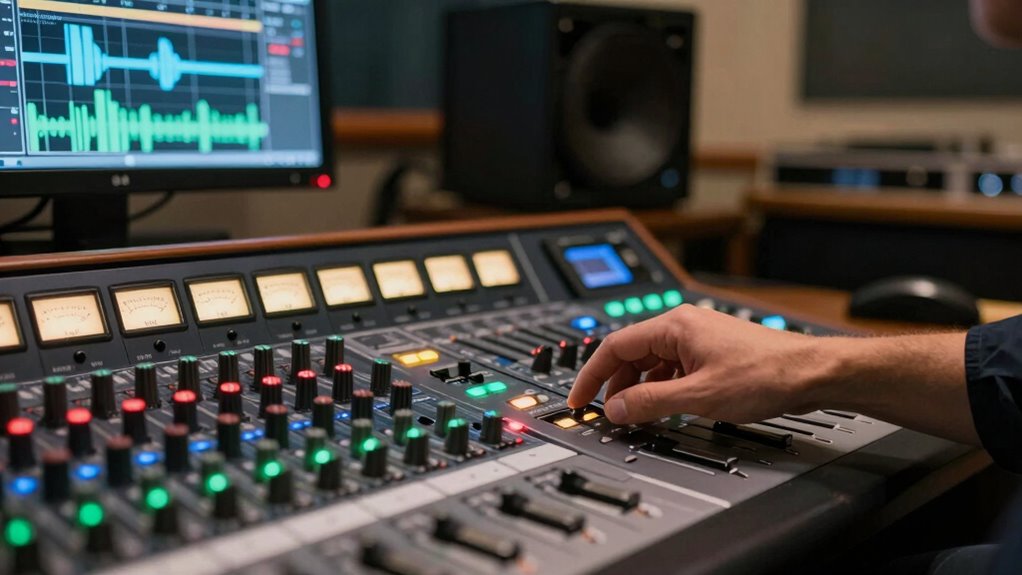
When you compress your audio for upload, you might notice a reduction in the dynamic range, making quiet sounds less distinct and loud sounds more uniform. This process can also cause a loss of important audio details, affecting overall clarity. Understanding how compression impacts your sound helps you choose the right settings to preserve quality. Keep in mind that Free Floating audio can sometimes be affected more noticeably by compression, emphasizing the need for careful adjustment. Being aware of audio fidelity considerations can help you make more informed decisions during the editing process. Additionally, maintaining proper airflow during recording can prevent unwanted noise that might be magnified after compression. Proper quality assessment of your recordings before and after compression can ensure optimal sound preservation. Recognizing how different compression settings influence your final audio helps in achieving the best possible upload quality.
Compression’s Impact on Dynamics
Compression can markedly alter the dynamics of your audio, especially during the upload process. When you apply compression, it reduces the dynamic range by making quiet sounds louder and loud sounds softer. This impacts how your audio’s loudness balancing appears after upload, often making the overall mix seem more uniform. While compression helps control peaks and maintain consistent volume levels, it can also diminish the natural variation in your audio. If overused, it may cause your audio to sound squashed or lifeless, losing the punch and clarity you initially intended. Understanding how compression affects these dynamics allows you to fine-tune your settings. Properly managed, it ensures your mix maintains its intended loudness and energy, even after the file is uploaded and processed. Additionally, sound dynamics can be affected by compression, influencing how listeners perceive your audio’s energy and emotion.
Loss of Audio Detail
As you compress your audio files for upload, you might notice a loss of subtle details and textures that give your sound richness. Compression often reduces audio clarity by narrowing dynamic range, which can lead to frequency loss. This diminishes the high and low-end nuances that make your sound full and natural. To understand this better, consider the table below:
| Effect of Compression | Result |
|---|---|
| Frequency Loss | Reduced high/low-end details |
| Audio Clarity | Less sharp, more muffled sound |
| Texture Preservation | Diminished subtle audio nuances |
| Overall Quality | Less vibrant and detailed |
Understanding these effects helps you choose the right compression settings to maintain as much audio detail as possible. Leasing a Car
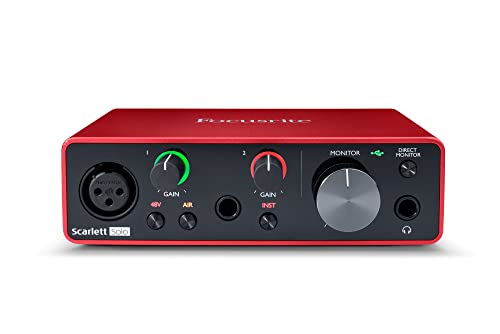
Focusrite Scarlett Solo 3rd Gen USB Audio Interface for Guitarists, Vocalists, Podcasters or Producers to record and playback studio quality sound
Pro performance with great pre-amps – Achieve a brighter recording thanks to the high performing mic pre-amps of…
As an affiliate, we earn on qualifying purchases.
As an affiliate, we earn on qualifying purchases.
How Platform Processing Can Alter Your Audio After Upload

When you upload your video, platform processing like compression and normalization can modify your audio’s loudness and clarity. These effects might make your audio sound different from what you intended, especially if the platform adjusts loudness levels automatically. Understanding how these processes work helps you make certain your audio stays consistent and true to your original vision. Additionally, being aware of audio processing techniques can help you optimize your audio before uploading to minimize unwanted changes. Properly preparing your audio files with gain staging can also reduce the impact of automatic platform adjustments and preserve your intended sound quality. Knowing about loudness normalization can further help you control how your audio levels are adjusted during processing. Moreover, familiarizing yourself with dynamic range compression can assist in maintaining consistent volume levels across your audio content.
Platform Compression Effects
Have you noticed how your audio sounds different after uploading it to certain platforms? This is often due to platform compression effects that alter your original mix. Platforms use specific audio codecs to optimize streaming quality, which can introduce compression artifacts or reduce dynamic range. When your audio is processed, these codecs apply lossy compression, sacrificing some audio detail to ensure smooth streaming and faster load times. As a result, your once-clear mix may sound more muted or less vibrant. Different platforms have varying compression standards, so the impact on your audio can differ widely. To minimize these effects, consider adjusting your mix to be more resilient to compression, such as avoiding overly dynamic sections or excessive peaks that might get clipped or flattened during platform processing. Additionally, understanding audio compression standards can help you tailor your recordings to better withstand platform processing. Being aware of platform-specific codecs can also aid in optimizing your audio for the best possible quality after upload.
Normalization and Loudness
Ever wonder why your audio sometimes sounds quieter or less consistent after uploading? That’s because platforms often apply audio normalization, which adjusts your sound to meet loudness standards. This process ensures all videos have a similar perceived volume, making user experience more uniform. When you upload, the platform analyzes your audio’s loudness levels and applies compression or amplification accordingly. If your original mix exceeds or falls short of the platform’s loudness standards, your audio will be altered to match them. This can cause your sound to appear quieter or more compressed than intended. Understanding how normalization works helps you craft mixes that stay true to your vision, even after platform processing. Keeping your loudness levels within recommended standards minimizes unexpected changes after upload. Additionally, being aware of platform processing algorithms allows you to optimize your audio before uploading for more consistent results. Knowing how loudness normalization interacts with your audio can help you make better mixing decisions to preserve your intended sound quality.
How to Prepare Your Audio Files for Upload and Maintain Quality
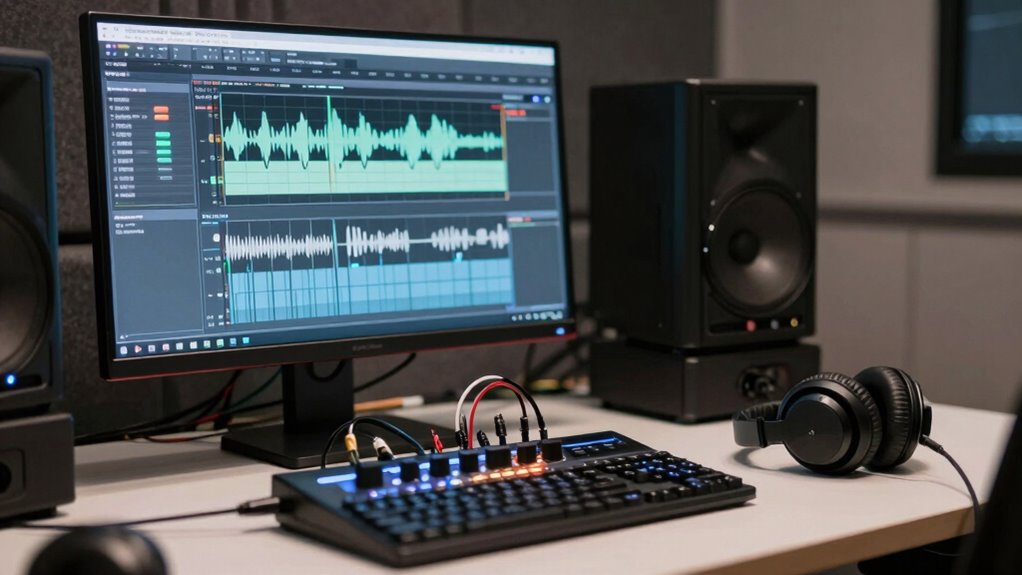
To guarantee your audio files upload smoothly and retain their quality, start by selecting the right format and settings. Focus on proper audio file formatting, such as using WAV or AIFF for lossless quality, rather than compressed formats like MP3. This guarantees your audio remains clear and detailed after upload. Follow upload best practices by maintaining consistent sample rates (usually 44.1 or 48 kHz) and bit depths (16 or 24-bit) to avoid quality degradation. Before uploading, check that your levels are balanced and avoid clipping. Naming your files clearly and organizing them properly streamlines the process. Additionally, understanding the importance of audio quality standards helps ensure your audio preserves its integrity, sounds professional, and minimizes the need for post-upload adjustments. Ensuring your audio adheres to industry standards can also aid in maintaining a consistent listening experience across platforms. Incorporating proper audio calibration techniques can further optimize your files for various playback environments, especially when considering different audio environments and listener settings. Regularly testing your audio on different devices can help identify potential issues related to listener settings and ensure consistent quality across all platforms.
Using Reference Tracks to Check Your Audio Before Upload
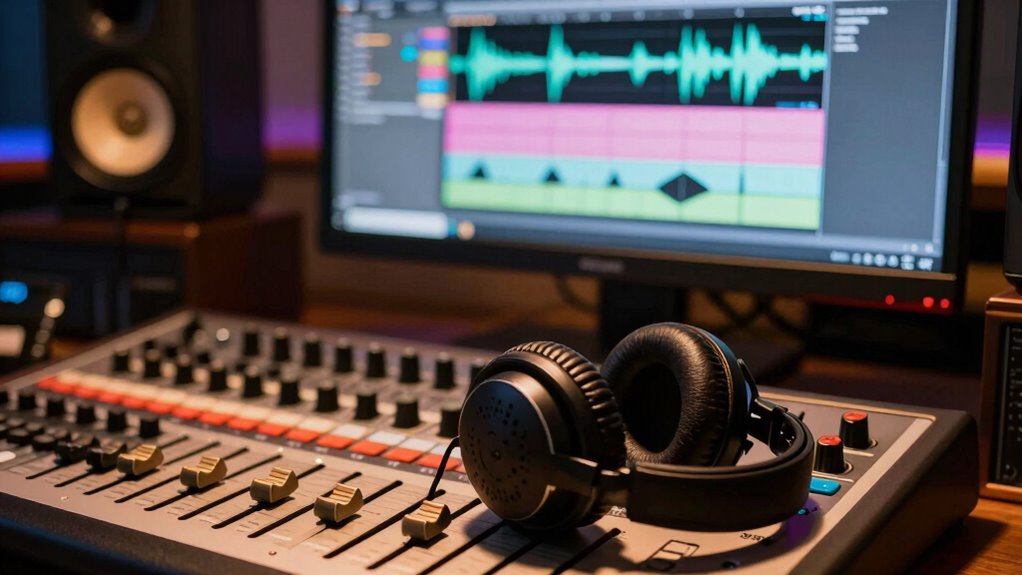
Using reference tracks is an essential step in ensuring your audio sounds professional before upload. They help you compare your mix to industry standards and catch issues early. To pick the right reference track, focus on selecting songs with similar instruments, genre, and production style. This allows effective audio quality benchmarking and helps you identify tonal imbalances early. When listening, imagine yourself in a studio listening environment, paying close attention to clarity, balance, and loudness. Visualize:
- The crispness of vocals against background instruments
- The punch of bass and kick drums
- The clarity of dialogue and sound effects
- The overall loudness matching streaming platforms
- The tonal balance across high and low frequencies
Using these reference tracks helps you identify discrepancies, ensuring your final upload maintains professional sound quality. Additionally, audio quality control can be compared to your reference tracks to ensure consistency and quality.
Troubleshooting Common Audio Changes After Upload

After uploading your video, you might notice that the audio sounds different from your original mix. To troubleshoot, first check if the platform compressed or altered your audio, affecting clarity and sound consistency. Try listening on different devices to identify where the issue occurs. If the audio quality drops, consider re-exporting your file with higher bitrates or using platform-specific recommended formats. Make certain your audio levels are balanced before upload, as uneven levels can cause changes post-upload. Additionally, verify that your audio isn’t being automatically processed by the platform, which can impact clarity. Adjust your mix accordingly, keeping it simple and avoiding overly aggressive compression. These steps help maintain your original sound quality and ensure your audio remains clear and consistent after uploading.
Frequently Asked Questions
Can Different Devices Playback Audio Differently After Upload?
Yes, different devices can playback audio differently after upload. This happens because of device compatibility issues and varying audio calibration settings. Some devices might boost or cut certain frequencies, making your mix sound different. To minimize this, verify your audio is properly calibrated and optimized for multiple devices. Testing your video on various devices helps you identify and address playback discrepancies, giving viewers a consistent listening experience across platforms.
How Do I Choose the Best Audio Format for Streaming Platforms?
Ironically, choosing the best audio format for streaming platforms isn’t rocket science; it’s about balancing quality and compatibility. Opt for AAC or MP3, as they’re widely supported and offer good compression without sacrificing sound. Check platform guidelines to confirm your format aligns. Remember, streaming platforms prioritize efficiency, so selecting the right audio format guarantees your audience experiences quality, regardless of device or connection.
Does Internet Speed Affect My Audio Quality During Upload?
Yes, your internet speed affects your audio quality during upload. A faster, more stable connection guarantees consistent upload speeds, reducing interruptions that can cause quality drops or file corruption. If your internet is slow or inconsistent, your audio might upload at a lower quality or with errors, leading to changes after upload. To maintain high audio quality, make certain your internet speed is sufficient and your connection remains steady throughout the upload process.
Are There Specific Settings to Prevent Audio Loss During Compression?
To prevent audio loss during compression, focus on bitrate optimization and codec selection. You should choose a high bitrate to preserve audio quality and opt for a codec like AAC or Opus that maintains clarity. Adjust your settings to balance quality and file size, ensuring your audio stays consistent after upload. By fine-tuning these parameters, you help your sound retain its original richness, even through the compression process.
How Can I Test My Audio Quality After Upload Without Re-Uploading?
You can perform audio testing by downloading your uploaded video and listening closely with quality assurance in mind. This allows you to compare the final sound to your original mix and identify any issues. Use headphones and various devices to guarantee consistent quality across platforms. This method helps you verify audio quality without re-uploading, saving time and ensuring your final product maintains the intended sound.
Conclusion
Understanding why your audio changes after upload is like chasing a shadow—you think you’ve caught it, only to find it’s shifted. By mastering codecs, compression, and platform processing, you can keep your sound true to your vision. Think of your audio as a precious gem—careful handling maintains its shine. With proper preparation, you’ll ensure your masterpiece remains clear, vibrant, and exactly as you intended, no matter where it’s heard.