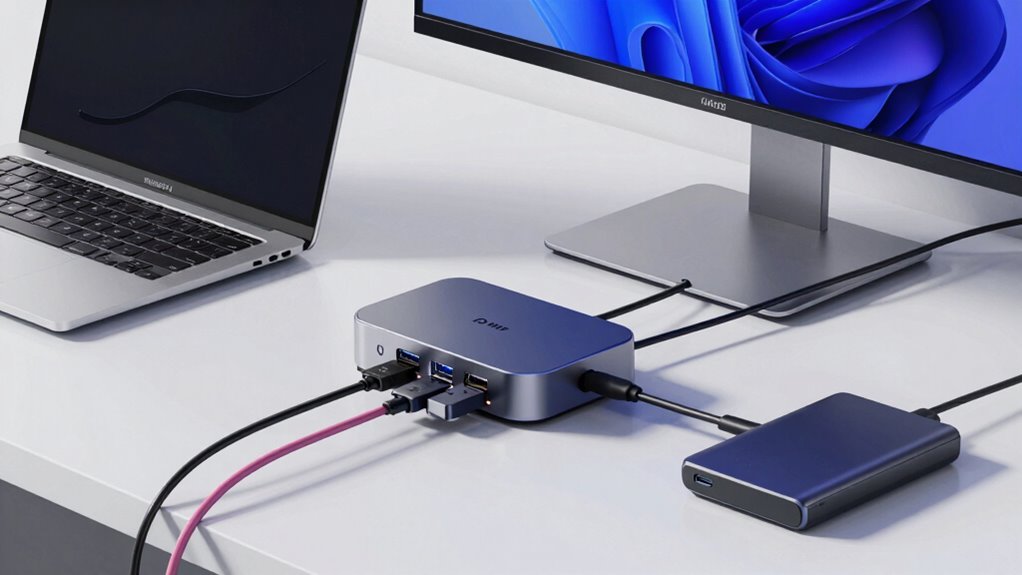

Docking stations expand your workspace by offering various ports like USB, HDMI, Ethernet, and audio jacks, but their capabilities vary. They can charge your laptop through Power Delivery, usually 85W or higher for powerful devices. Display support depends on bandwidth, with some handling multiple 4K monitors or more. To maximize their potential, you need to understand these limits thoroughly. Keep exploring to discover how to choose the right dock for your needs.

Get audio and creator gear delivered free with Prime
- Fast, free delivery on millions of items
- Prime Video, Amazon Music and more included
- Member-only deals all year
Key Takeaways
- Port variety and types determine compatibility with peripherals and external displays; verify device requirements before purchasing.
- Power Delivery wattage impacts charging speed and whether the dock can support high-performance laptops during use.
- Display support varies; check bandwidth and monitor resolution limits to ensure optimal multi-monitor setups.
- Wireless features like Wi-Fi and Bluetooth enhance workspace flexibility but do not replace wired connection needs for certain devices.
- Understanding a dock’s bandwidth and port capabilities helps maximize performance and avoid connectivity or display issues.
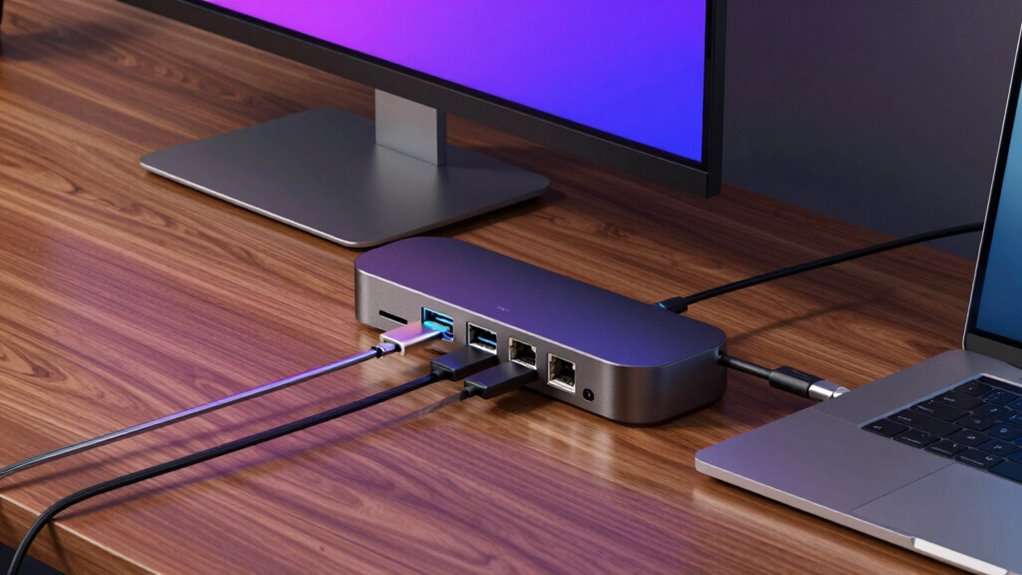
Docking stations have become indispensable tools for expanding your laptop’s connectivity, but understanding their port options, power capabilities, and display limits is crucial to getting the most out of them. When choosing a docking station, one of the first things to evaluate is the variety of ports it offers. These ports determine what peripherals you can connect—from external monitors and keyboards to external storage devices and audio equipment. A good docking station should provide multiple USB ports (both Type-A and Type-C), HDMI or DisplayPort outputs for displays, Ethernet for wired internet, and audio jacks. This variety ensures you can connect all your essential devices simultaneously without constantly plugging and unplugging cables.
Choose a docking station with diverse ports to connect multiple devices seamlessly and enhance your workspace.
Wireless connectivity features are increasingly common in modern docking stations, adding convenience by reducing cable clutter. With built-in Wi-Fi or Bluetooth, you can connect wireless peripherals like keyboards, mice, or speakers directly to your docking station. This enhances your workspace’s ergonomic design by allowing you to position devices more flexibly, reducing strain and promoting better posture. Wireless options also make it easier to switch between different peripherals or connect to network resources without the hassle of multiple cables, streamlining your workflow.
Power capabilities are equally important. Many docking stations provide Power Delivery (PD), which can charge your laptop while you work, removing the need for a separate charger. The wattage supported by the dock determines how fast your laptop recharges and whether it can handle power-hungry devices. For instance, a dock supporting 85W or higher is suitable for most high-performance laptops. Be sure to check your laptop’s power requirements and ensure the dock’s wattage matches or exceeds them. Overloading the dock can lead to insufficient charging or device instability. Additionally, understanding power output and how it relates to your device’s needs can prevent compatibility issues.
Display limits are a key factor, especially if you rely on multiple monitors. Different docks support varying numbers of displays and resolutions—some may only handle one 4K monitor, while others can support three or more at 1080p or 4K. Keep in mind the bandwidth of the dock’s video outputs; higher resolutions and multiple displays demand more data transfer capacity. If you work with graphics-intensive applications or need expansive screen real estate, verify the dock’s display specifications beforehand. Additionally, understanding the video bandwidth capacity of the dock can help ensure optimal performance for your setup.
Products Worth Considering

Samsung 27 Odyssey OLED G5 (G50SF) QHD QD-OLED Gaming Monitor

Samsung 32-Inch Odyssey OLED G8 (G80SH) 4K Gaming Monitor

Bose QuietComfort Wireless Noise-Cancelling Over-Ear Headphones, Black
As an affiliate, we earn on qualifying purchases.
Frequently Asked Questions
Can Docking Stations Be Used With Gaming Laptops?
Yes, you can use docking stations with gaming laptops. They improve gaming performance by providing extra ports for peripherals and additional display options. However, keep in mind that some docking stations might affect your battery life, especially if they draw power from your laptop during extended gaming sessions. Choose a docking station compatible with your gaming laptop to guarantee peak performance without compromising battery life.
Are There Compatibility Issues With Specific Operating Systems?
You might face some compatibility issues with specific operating systems when using a docking station. Confirm your OS supports the docking station by checking for driver support and updates. Windows generally has broad compatibility, but some docks may not work seamlessly with macOS or Linux without additional drivers. Always verify the dock’s specifications and manufacturer recommendations to avoid potential issues, and update your OS and drivers regularly for maximum performance.
How Do Docking Stations Handle Multiple High-Resolution Displays?
Many docking stations can handle multiple high-resolution displays, but resolution limitations depend on the model. You might find that some stations support two 4K displays, while others can manage more, depending on their Display configurations and GPU capabilities. To avoid issues, check the docking station’s specifications for maximum resolution and supported display count. Ensuring compatibility with your device’s graphics card helps you get the best performance without compromising display quality.
Can I Connect External Audio Devices via Docking Stations?
Yes, you can connect external audio devices via docking stations. Most docking stations offer audio connectivity options like a 3.5mm audio jack, USB ports, or even optical audio outputs. You can easily connect external speakers or headphones to enjoy better sound quality. Just make certain your docking station supports audio output, and use the appropriate port to connect your external speakers for an enhanced audio experience.
Do Docking Stations Support Fast Data Transfer for External Drives?
Yes, many docking stations support fast data transfer speeds for external drives, especially those with Thunderbolt 3, USB 3.2, or USB-C ports. To guarantee maximum performance, check the dock’s specifications for data transfer speeds and compatibility with your external drive. Using a compatible high-speed port will let you transfer large files quickly, making your workflow more efficient. Just verify your drive’s compatibility with the docking station’s supported standards.
Conclusion
As you navigate the maze of ports, power, and display options, remember that a good docking station is like a reliable bridge—connecting your devices smoothly and confidently. It’s your command center amid a sea of cables, turning chaos into clarity. Choose wisely, and you’ll sail through your workday with ease, your screens lighting the way like guiding stars. With the right station, your workspace becomes a seamless universe, ready to support your every move.