Docking stations hit display limits faster than you might expect because of hardware and bandwidth constraints. Your dock’s supported display types, like HDMI or DisplayPort, have maximum capacities, which restrict the number and resolution of monitors. Shared bandwidth can cause flickering or lag, especially with multiple high-res displays. Over time, these limitations become more noticeable, and if you keep using the same setup, issues may worsen. Stay with us to explore how to optimize your setup and avoid these common hurdles.
Key Takeaways
- Hardware standards like DisplayPort 1.4 and HDMI 2.0 restrict the number of high-resolution monitors supported simultaneously.
- Bandwidth limitations cause signal degradation, flickering, or blackouts when connecting multiple high-resolution displays.
- Power and physical cable constraints limit the number of monitors and devices a docking station can efficiently support.
- Wireless connections often lack the bandwidth needed for multiple high-res monitors, leading to performance issues.
- Upgrading is necessary when hardware reaches its maximum supported display resolution, number, or experiences persistent connectivity issues.

Anker Laptop Docking Station Dual Monitor, 8-in-1 USB C Hub, 4K Dual Monitor with 2 HDMI, 1 Gbps Ethernet Hub, 85W Power Delivery, SD Card Reader, for XPS and More (Charger not Included)
The Anker Advantage: Join the 50 million+ powered by our leading technology.
As an affiliate, we earn on qualifying purchases.
As an affiliate, we earn on qualifying purchases.
What Are Docking Stations and How Do They Work?
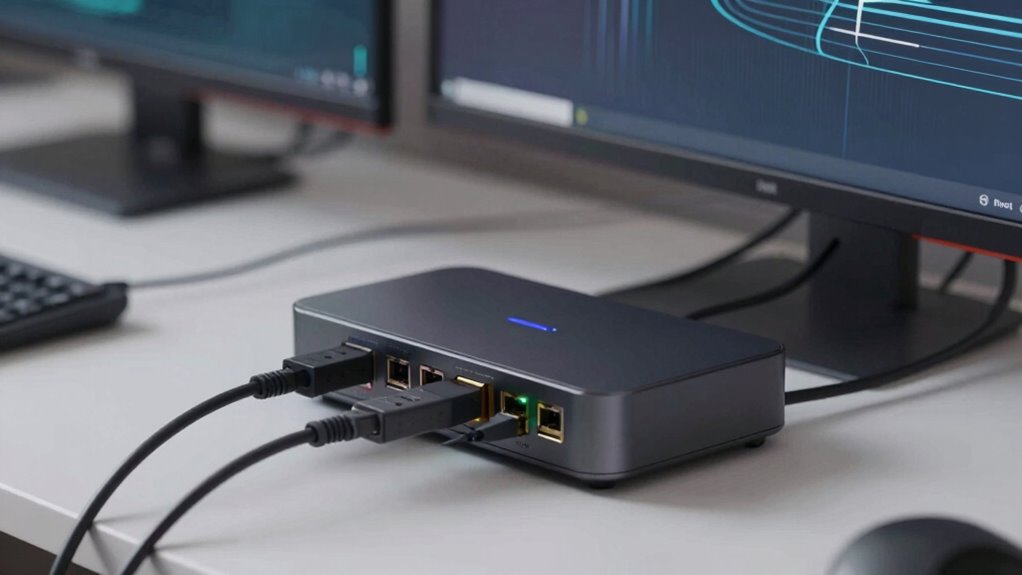
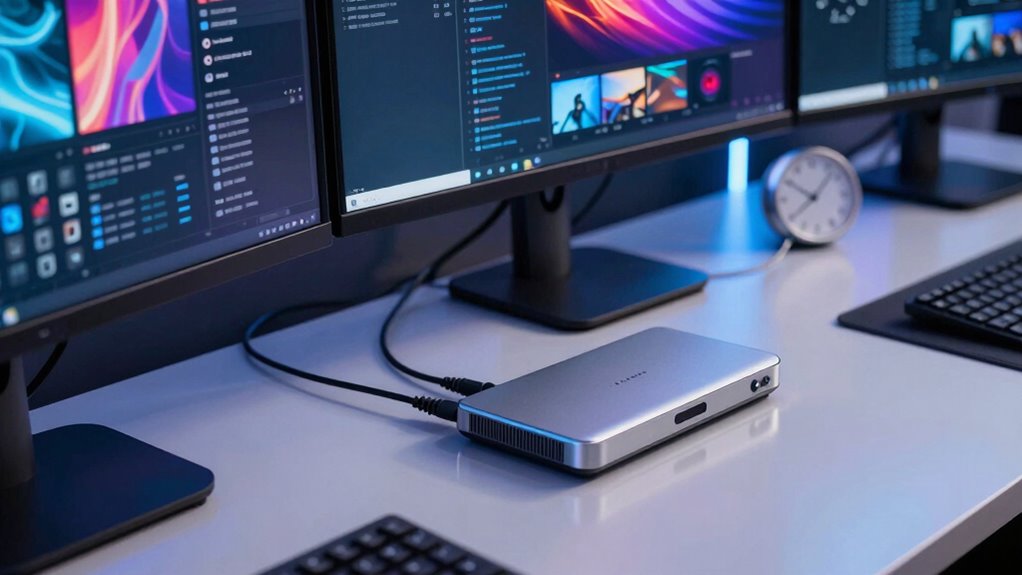
Docking stations are devices that expand your computer’s connectivity options, allowing you to connect multiple peripherals with a single connection. They typically use wired connections like USB-C or Thunderbolt, but some models support wireless connectivity, giving you more flexibility. When you plug in a docking station, it acts as a hub, providing additional ports for monitors, keyboards, mice, and other accessories. Many docking stations also deliver power delivery, meaning they can charge your laptop while connected, reducing the need for separate chargers. This setup simplifies your workspace and keeps your devices organized. Understanding how docking stations work helps you choose the right one for your needs, especially if you rely on multiple peripherals and want seamless connectivity combined with efficient power management. Additionally, some docking stations may encounter display limits more quickly than users expect, especially when supporting multiple high-resolution monitors. These limits are often influenced by technology constraints, which can vary depending on the docking station’s design and capabilities. For example, bandwidth capacity plays a crucial role in determining how many displays and devices can be supported simultaneously without issues. Knowing the device specifications can help prevent unexpected performance limitations.

USB C Docking Station 3 HDMI, Selore 13-in-1 Docking Station 3 Monitors with Triple HDMI, 10Gbps USB A/C 3.1, 100W PD Charging, Gigabit Ethernet, SD/microSD Card Reader for Dell/HP/Lenovo Laptops
【Selore 12-in-1 USB C Docking Station】Create a powerful triple monitor workstation with this USB C docking station with…
As an affiliate, we earn on qualifying purchases.
As an affiliate, we earn on qualifying purchases.
What Hardware Limits Your Docking Station’s Display Output?
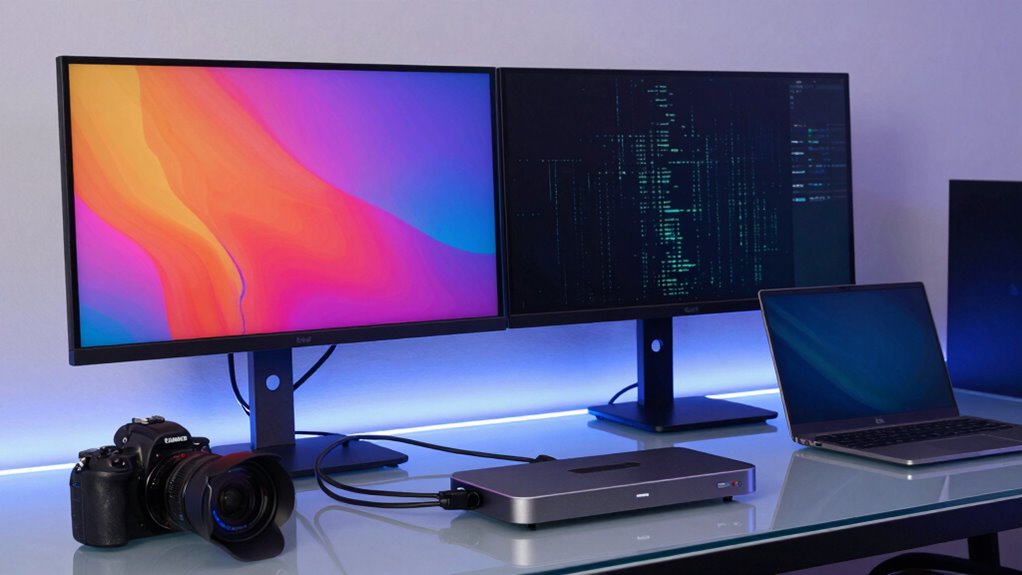
The hardware inside your docking station determines how many displays you can connect and at what resolution. The graphics processing unit (GPU) and video outputs set these limits. If your GPU isn’t powerful enough, you’ll face restrictions on resolution and the number of monitors. Additionally, wireless connectivity options, like Wi-Fi or Bluetooth, can influence display setup flexibility but may introduce latency or bandwidth issues. Power delivery also plays a role—insufficient power can prevent your docking station from supporting multiple high-resolution screens or fast data transfer. Understanding these hardware components helps you avoid overloading your dock and guarantees peak performance. Being aware of hardware limitations ensures you select a dock that meets your specific display needs. Regularly checking software compatibility can also prevent unexpected restrictions and optimize your setup. Moreover, considering regional hardware standards can help ensure your dock functions seamlessly across different markets. Being informed about hardware standards can further assist in avoiding compatibility issues.
Anker Laptop Docking Station Dual Monitor, 8-in-1 USB C Hub, 4K Dual Monitor with 2 HDMI, 1 Gbps Ethernet Hub, 85W Power Delivery, SD Card Reader, for XPS and More (Charger not Included)
The Anker Advantage: Join the 50 million+ powered by our leading technology.
As an affiliate, we earn on qualifying purchases.
As an affiliate, we earn on qualifying purchases.
How Does Bandwidth Affect Multiple Monitors?
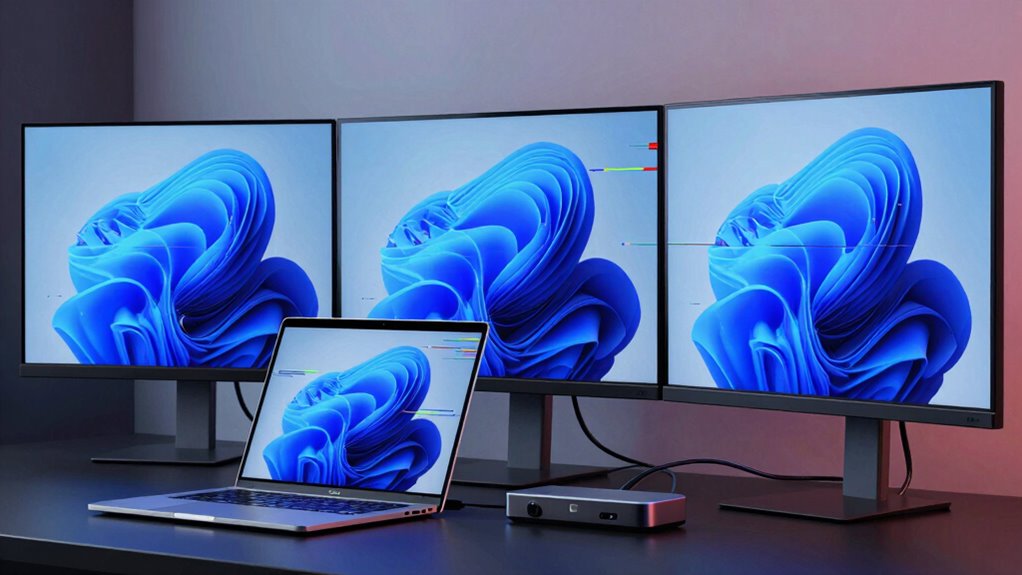
When you connect multiple monitors, bandwidth becomes a key factor in performance, as it determines how much data can be transmitted simultaneously. If your docking station’s bandwidth is limited, you might notice lag or flickering on your screens. Signal interference from other devices can also disrupt the data flow, causing display issues. Additionally, a well-designed mindful room setup can help reduce external interference and optimize signal stability. Properly managing electromagnetic interference can further enhance the stability of your connections and prevent display disruptions. Understanding bandwidth capacity is essential to ensure your setup can handle multiple displays without degradation in performance, especially as emerging technologies like sound healing science continue to influence the design of effective workspace environments. Recognizing the importance of signal strength can help you troubleshoot and improve overall display quality.
Bandwidth Limits Multimonitor Performance
As you connect multiple monitors to a docking station, the available bandwidth becomes a critical factor in maintaining smooth performance. Limited bandwidth can cause lag, stuttering, or reduced resolution across your displays. Wireless connectivity options, while convenient, often share bandwidth with other devices, further limiting performance when multiple screens are involved. Power delivery also plays a role, as high-power demands from several monitors can strain the docking station’s capacity, reducing data transfer efficiency. When bandwidth is insufficient, you might notice flickering or dropped frames, especially during demanding tasks like video editing or gaming. To avoid these issues, choose a docking station with ample bandwidth capacity and prioritize wired connections for stable, high-performance multi-monitor setups. Incorporating herbal wellness principles like maintaining balance and optimizing resources can also be applied to technology setups to enhance overall performance and longevity. Additionally, understanding how bandwidth limits impact data transfer can help you better manage your multi-monitor environment for optimal results, especially when considering network congestion, which can further reduce effective bandwidth. Recognizing the importance of Red/Blue team strategies in cybersecurity can also help protect your data and system integrity during high-demand scenarios. Moreover, selecting equipment with sufficient data transfer capacity ensures consistent performance even during peak usage.
Signal Interference Causes Disruptions
Limited bandwidth doesn’t just slow down data transfer; it can also lead to signal interference that disrupts your multi-monitor setup. Wireless interference from nearby devices, like Wi-Fi routers or Bluetooth gadgets, can cause signal degradation, affecting display quality and stability. When multiple monitors share limited bandwidth, signals can compete and interfere, leading to flickering or disconnections. This interference is especially common in crowded environments where many wireless signals overlap. As a result, your monitors may experience lag, reduced clarity, or temporary blackouts. To mitigate these disruptions, ensure your docking station and wireless devices operate on different channels or frequencies. Using wired connections where possible also reduces the risk of wireless interference and helps maintain a stable, high-quality multi-monitor experience.

UGREEN 12 in 1 Triple 4K Docking Station with 2 HDMI, DP, 2x10G USB C, 2×USB-A2.0, 100W PD, SD/TF, 1000Mbps Ethernet, 3.5MM Audio, Revodok Pro USBC Hub Multiple Adapter for DELL, HP and More
12-in-1 Docking Station: This triple 4K docking station includes 2 HDMI ports, 1 DP port, 210G USB C…
As an affiliate, we earn on qualifying purchases.
As an affiliate, we earn on qualifying purchases.
Which Display Standards Limit Expansion?
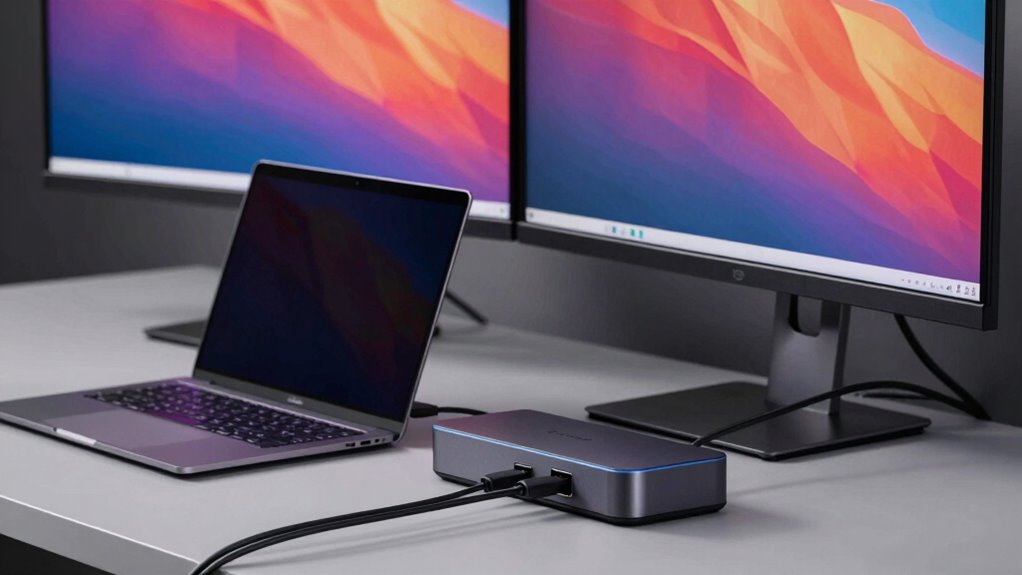
HDMI and DisplayPort standards often cap the number of displays you can connect, limiting your setup options. These constraints mean you might reach their maximum capacity sooner than expected. As a result, expansion becomes challenging without switching to newer or different standards.
HDMI and DisplayPort Constraints
While HDMI and DisplayPort have become standard solutions for connecting multiple monitors, their inherent technical limitations can hinder expansion plans. Both standards have bandwidth caps that restrict the number of high-resolution displays you can connect simultaneously, especially when aiming for 4K or higher resolutions. This means you might face reduced refresh rates or image quality if you push beyond these limits. Additionally, these interfaces don’t support wireless connectivity, forcing you to rely on cables that can clutter your workspace. Power delivery is another constraint; many docks and monitors can’t supply enough power to charge your devices while running multiple displays. As a result, expanding your setup with multiple high-quality monitors becomes challenging, forcing you to compromise on resolution, refresh rate, or convenience. Product roundups can help you find the best gear to optimize your setup within these constraints.
Limited Multi-Display Support
Many display standards struggle to support multiple high-resolution monitors simultaneously, especially as you try to expand your setup. HDMI and DisplayPort have limits on bandwidth and number of streams, which restrict multi-display support. For example, DisplayPort 1.4 can handle only two 4K displays or one 8K, while HDMI 2.0 supports two 4K screens. Wireless connectivity options like Miracast or WiDi often lack the bandwidth for high-res multi-monitor setups, leading to lag or reduced quality. Power management also complicates expansion, as docking stations may not deliver enough power to multiple monitors or devices. Here’s a quick comparison:
| Standard | Max Displays | Bandwidth Limit | Wireless Support |
|---|---|---|---|
| HDMI 2.0 | 2 | 18 Gbps | Limited |
| DisplayPort 1.4 | 2 | 32.4 Gbps | Limited |
| Wireless HDMI | 1-2 | Varies | Full |
Additionally, display standards often face challenges in supporting future high-resolution displays, further limiting expansion options.
How Can You Maximize Your Docking Station’s Display Capacity?
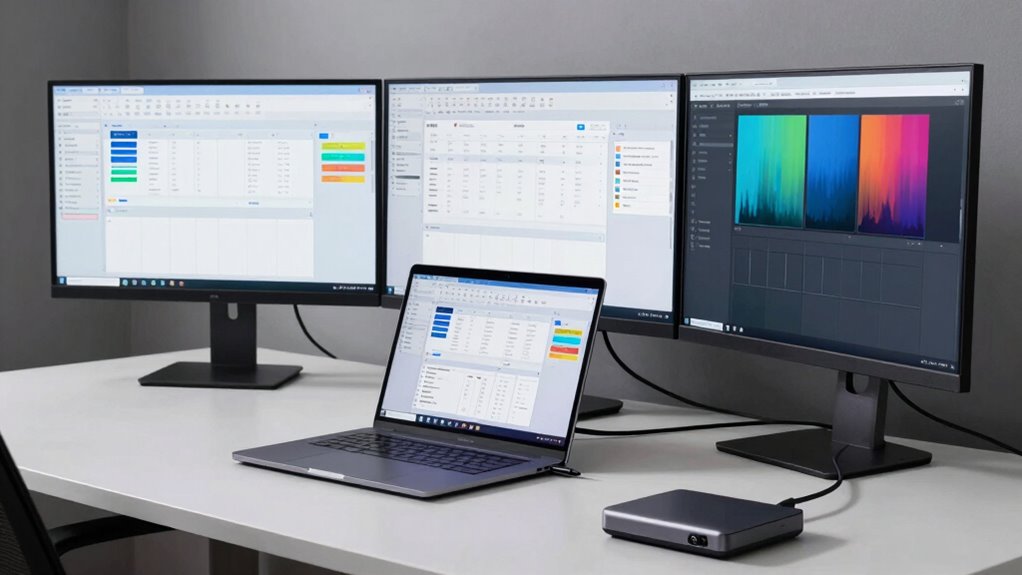
Maximizing your docking station’s display capacity starts with choosing the right connections and configurations. Use wired connections like HDMI, DisplayPort, or USB-C to guarantee stable, high-bandwidth data transfer, which supports multiple displays effectively. Wireless connectivity options, such as Miracast or Wi-Fi display, can add flexibility but might limit performance or resolution. Proper power management is also essential; make sure your dock supplies enough power to support multiple displays without draining your laptop’s battery or causing overheating. Organize your cables neatly to avoid signal interference, and update your docking station’s firmware for maximum compatibility. Additionally, understanding display limits can help you plan your setup more effectively. By selecting the appropriate connection types and managing power efficiently, you can maximize your dock’s display capacity and get the most out of your setup.
When Should You Upgrade Your Docking Station or Setup?
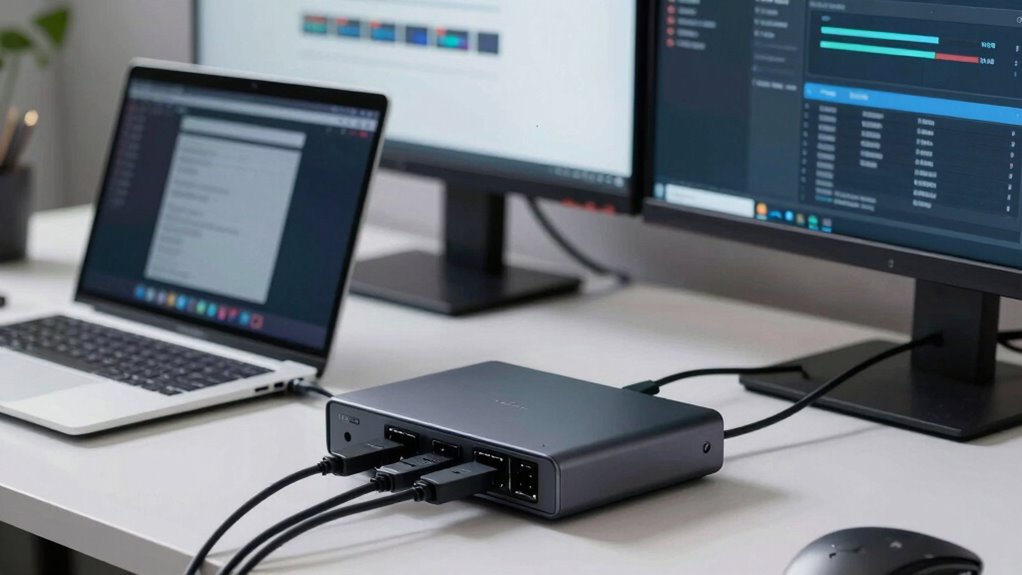
You should consider upgrading your docking station or setup when you notice persistent performance issues, such as sluggish display response, frequent disconnects, or inconsistent resolution. Poor wireless connectivity can cause lag or dropped signals, disrupting your workflow. If your devices struggle to maintain a stable connection, it’s time to assess your setup. Additionally, inadequate power management can lead to devices not charging properly or shutting down unexpectedly, which can hinder productivity. Upgrading your docking station with better bandwidth support, more reliable wireless features, and improved power delivery guarantees smoother operations. If these issues persist despite troubleshooting, it indicates that your current setup no longer meets your needs, and an upgrade is necessary to keep your workspace efficient. Monitoring your connection stability can help determine when an upgrade is truly needed. Regularly evaluating your hardware capabilities can also prevent future bottlenecks and ensure your setup remains efficient. Staying informed about the latest technology advancements helps you recognize when your existing equipment is outdated and needs an upgrade to match new performance standards.
Frequently Asked Questions
Can Software Updates Increase a Docking Station’s Display Output Limits?
Yes, software updates can increase a docking station’s display output limits. Improved software compatibility and firmware enhancements often optimize hardware performance, allowing your docking station to support higher resolutions or additional displays. Regularly updating your device guarantees you benefit from these improvements, extending its capabilities. Keep an eye on manufacturer releases to maximize your docking station’s potential and avoid hitting display limits sooner than expected.
Do Different Brands of Docking Stations Have Varying Display Capacities?
Yes, different brands of docking stations have varying display capacities due to differences in brand compatibility and hardware compatibility. When choosing a docking station, you need to take into account the specific compatibility requirements of your devices, such as graphics card capabilities and connection standards. Some brands optimize their hardware for higher display outputs, while others may have limitations, so always check the specifications to guarantee it meets your display needs.
How Does Operating System Impact Maximum Monitor Support?
Your operating system impacts maximum monitor support by managing GPU compatibility and USB standards. A newer OS can better support advanced GPUs, allowing more displays. It also optimizes USB standards like USB-C, enabling docking stations to handle higher display outputs efficiently. Outdated OS versions may limit these capabilities, causing you to hit display limits sooner. Staying updated guarantees your system leverages the latest GPU and USB advancements for maximum monitor support.
Are There Any Hidden Hardware Limitations Not Listed by Manufacturers?
Yes, hidden hardware limitations can affect your docking station experience. Hardware bottlenecks, like limited bandwidth in USB or Thunderbolt ports, can restrict monitor support unexpectedly. Additionally, power delivery capacity may be insufficient for multiple high-power devices, causing performance drops or connection issues. These hidden constraints often aren’t listed by manufacturers, so understanding your setup’s hardware bottlenecks and power delivery limits helps guarantee your docking station meets your display needs effectively.
Can Third-Party Adapters Extend Display Capabilities Beyond Docking Station Limits?
Yes, third-party adapters can often extend display capabilities beyond a docking station’s limits. You need to check cable compatibility and port configurations carefully, as some adapters utilize alternative data pathways or combine signals to support multiple displays. Make certain your laptop’s GPU can handle the additional displays, and pick adapters that match your docking station’s port types. This way, you can push beyond standard limits while maintaining reliable performance.
Conclusion
To keep your setup smooth and your screens shining, stay savvy about your docking station’s limits. Don’t let bandwidth barriers or display standards sabotage your workspace. Regularly review your needs, upgrade when necessary, and understand your hardware’s heart. By balancing bandwidth, visuals, and hardware, you’ll prevent productivity pitfalls and keep your multi-monitor masterpiece magnificent. Master your hardware, maximize your monitors, and maintain a marvelous, multitasking machine!